We are the MozFace team. Remote onboarding, contractor verification, gym sign-ups, and event check-ins increasingly ask you to send a photo of your employee or student ID. The request is reasonable, but the photo you send is not — a single shot of the card carries your face, your full name, your ID number, and sometimes a department or barcode, all readable to whoever receives it. This article walks through what to hide on an ID photo and how to do it so the card still proves what it needs to without giving everything away.
What an ID photo actually reveals
An employee or student ID is dense with personal data. In one frame you usually have your photo, your name, an ID or membership number, and a barcode or QR code, plus the organization name and sometimes an expiry date. Whoever needs the card rarely needs all of that. A check-in desk may only need to see that the card is valid; a verification team may only need the name to match. The rest is yours to keep.
The risk is that once an ID photo leaves your phone, you have no control over where it lands or how long it is stored. A number that uniquely identifies you inside an organization is exactly the kind of detail that should not float around in chat threads or shared inboxes.
Cover only what you need to with the manual brush
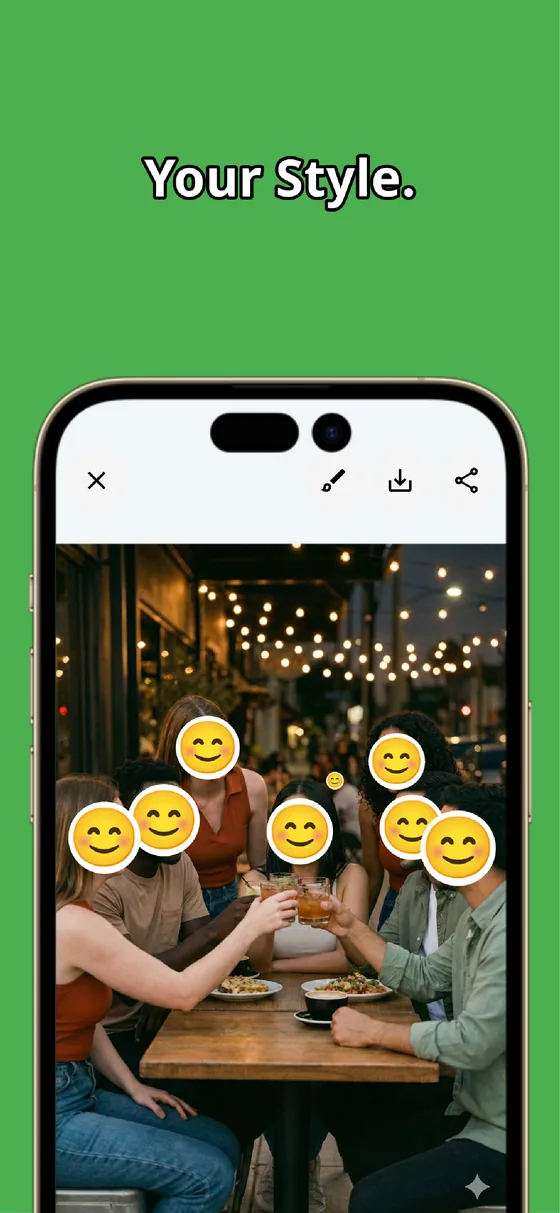
MozFace lets you hide exactly the parts you choose with a manual brush you trace with your finger. Pick mosaic, blur, or a stamp, then drag over your ID number, your photo, or the barcode. Change the brush size and it fits a single line of text or a small headshot just as well. Nothing else on the card is touched, so the organization name and validity stay visible if you want them to.
You decide what to cover. If verification needs your name but not your number, hide the number alone. If it needs the photo but not the barcode, cover the barcode. This is the opposite of cropping, which forces you to throw away whole sections of the card just to remove one detail.
Raise the strength and check by revealing
For numbers and small text, a weak blur can sometimes still be read if someone zooms in. MozFace lets you raise the strength until the characters break down into an unreadable block, and switch to a heavier mosaic where you want to be certain. The finished photo saves as a separate file, so your original card scan stays intact for your own records.
Before you send anything, it helps to confirm what is hidden. Because you place each cover yourself, you can tap to reveal and recheck a spot, adjust it, and cover it again — so a missed digit does not slip out. Whether an ID is appropriate to share at all is a call only you can make, and the app simply gives you a clean way to mask what you decide to hide.
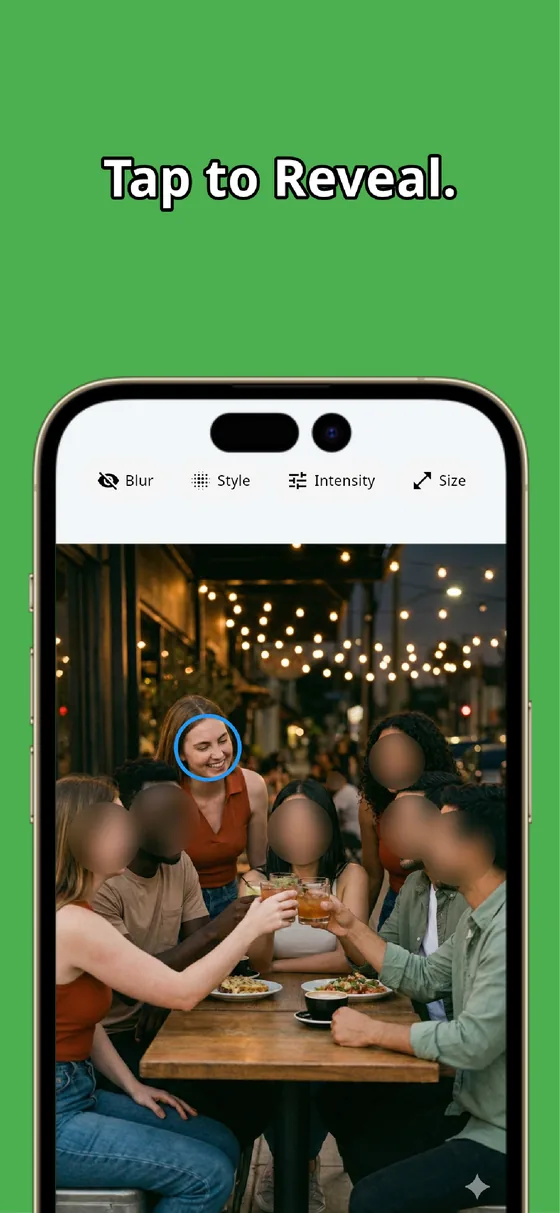
An ID photo proves you are who you say you are, but it does not have to hand over every detail printed on the card. Cover only the parts you choose with the manual brush, raise the strength on numbers, and recheck before sending. In under a minute you have a photo that verifies what it should and hides the rest.
MozFace
Auto-mosaic or blur every face just by picking a photo. Cover ID numbers and barcodes with the manual brush. Everything runs on your device, fully offline.
Learn more about MozFaceFrequently asked questions
What should I hide on an employee or student ID photo?
Usually your ID or membership number, the barcode or QR code, and your photo if it is not needed. Hide whatever the recipient does not actually require, and keep only what proves the card is valid.
Can I hide just the number and leave the name visible?
Yes. The manual brush covers only the spots you trace, so you can mask the ID number alone and leave the name and organization readable, unlike cropping which removes whole sections of the card.
Will a covered number really be unreadable?
Raise the strength until the characters break down into an unreadable block, or switch to a heavier mosaic. You can tap to reveal and recheck each spot before sending, so a missed digit does not slip out.
Are my photos ever sent over the internet?
In MozFace, detection and editing happen entirely on your device, and your photos are never sent to any external server. It works even with no signal.