To blur a face in a photo on iPhone or Android: the built-in Photos apps have no blur or mosaic tool, so you need a face-blur app. In MozFace, pick the photo and every face is detected and blurred automatically. Choose blur, mosaic or an emoji, tap any face you want to show, and save. There is no tracing by hand, and nothing leaves your device.
"I want to post this photo, but I need to hide a face first." You open the Photos app on your iPhone or the Gallery on Android, look for a blur button — and there isn't one. If you've been there, you're not imagining it: hiding a face cleanly with only the built-in tools is more of a hassle than it should be.
This article lays out what iPhone and Android can actually do with built-in tools, how a dedicated app differs, and the easiest way to hide every face just by picking a photo. We're the team behind the face blur app MozFace, so we'll introduce our own app at the end — but first, the full picture of how to do it.
Can you blur a face with iPhone's built-in tools?
The short answer: the iPhone Photos app has no dedicated blur or mosaic feature. Open the editor and you'll find brightness and color adjustments, cropping, and Markup (freehand drawing) — but no "turn this into a mosaic" button.
The well-known workaround is the magnifier (loupe) tool in Markup. In Photos, tap Edit → Markup → the + button → add a Magnifier, push the zoom to maximum, and place it over the face you want to hide so that area becomes distorted and hard to read. But a single loupe only covers one spot, so with several faces you have to stack circles one by one, and the result isn't as clean as a real mosaic.
On iPhone 15 Pro and later, Apple Intelligence's Clean Up is also available, but it's a tool for removing objects, not for blurring them. Erasing a person's face usually fills the background in an unnatural way, so it's not suited to hiding faces.
What about Android's built-in tools?
Android is much the same. Google Photos has no dedicated "auto-blur faces" feature. You can use Markup to paint over an area with your finger, but the stroke simply sits on top — it doesn't become a mosaic or blur that obscures what's underneath.
Some manufacturer galleries (such as certain Galaxy devices) include a simple mosaic tool, but availability varies by model, and it won't detect faces for you automatically. Either way, you're left manually marking which face to hide, one at a time.
For face blur, a dedicated app is faster and more reliable
Given the limits of built-in tools, the most reliable way to blur a face is a dedicated face blur app. These come in two broad types: a "manual" type where you trace over an area with your finger, and an "automatic" type where AI detects faces and blurs them for you.
The manual type lets you aim precisely, but tracing every face in a crowded photo is tedious and easy to miss someone. The automatic type detects faces the moment you pick a photo, so even a group shot is handled at once. If you want to hide faces quickly and reliably, the automatic type is the way to go.
With MozFace, every face is auto-blurred just by picking a photo
The app we make, MozFace, is that automatic type. When you pick a photo from your library, on-device AI detects every face and the editor opens with everyone already blurred. Even with ten people, there's no tracing them one by one.
And it works in reverse: instead of selecting who to hide, you tap to reveal only who you want to show. If you're the only one who should appear, just tap your own face. Everyone else stays blurred from the start, so no one gets missed.
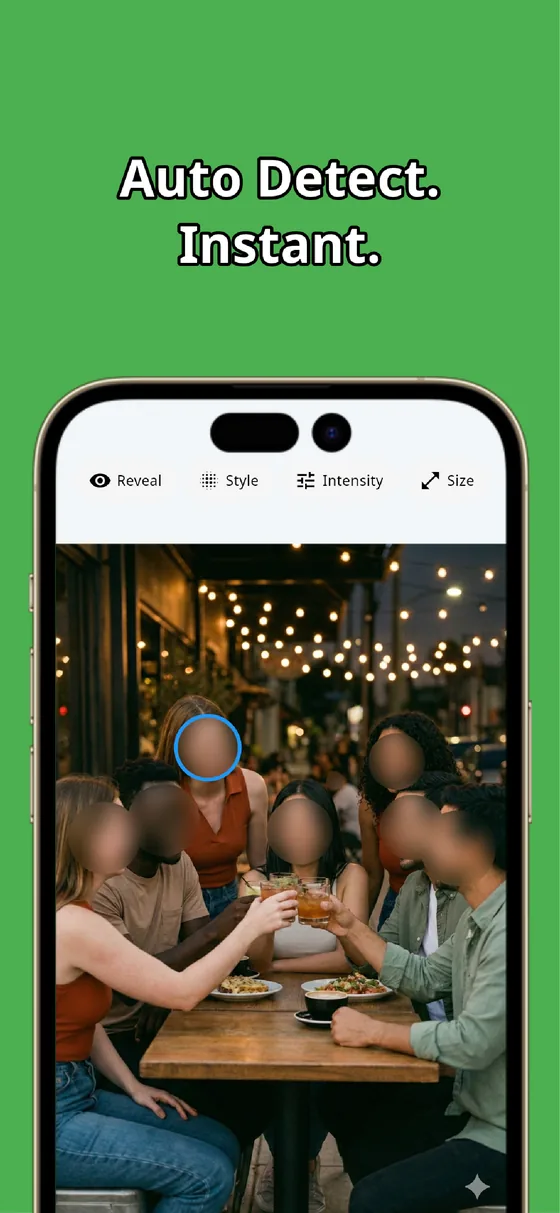
How to blur a face with MozFace, step by step
The actual workflow is simple. These steps take tens of seconds from start to finish.
- 1
Open MozFace and pick a photo. Launch the app and choose a photo from your library. No account sign-up required.
- 2
Every face is blurred automatically. The moment you pick the photo, AI detects the faces and the editor opens with everyone already blurred. Zero taps so far.
- 3
Tap to reveal only who you want to show. Tap your own face, or anyone who's okay with it, and that face is uncovered. The rest stay hidden, so no one is missed.
- 4
Adjust the style and strength. Choose mosaic, blur (Gaussian), or a stamp, and set the strength with a slider. Non-face areas like license plates can be hidden by tracing with the manual brush.
- 5
Save and share. When it looks right, save the photo and use it directly for a post or message. Your original isn't overwritten — the edited version is saved as a separate file.
Switch between mosaic, blur, and stamps
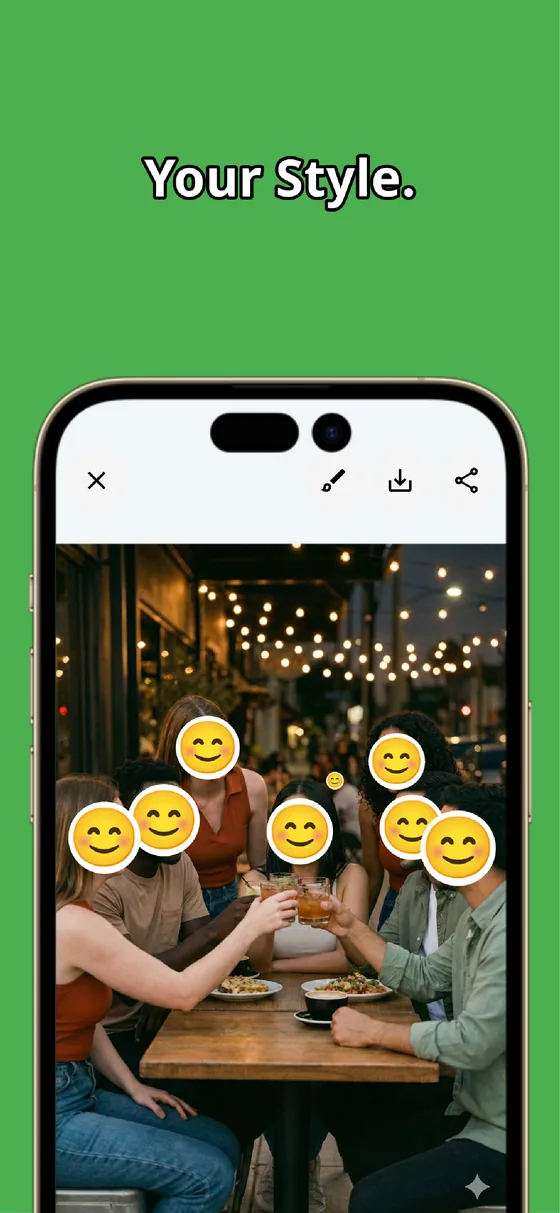
You can hide faces three ways. A frosted-glass Gaussian blur fits social posts and blogs; the classic mosaic covers firmly for marketplace listings or business use; and emoji stamps suit casual sharing with friends. Intensity is adjustable with a slider, and you can set a different style per face.
Whether you want something firm or something stylish, the right way to hide changes with the situation. Since you can switch between all three, you just pick what fits.
License plates and addresses, with the manual brush
Sometimes it's not just faces — there's personal information caught in the frame too. A car's license plate, an address on a nameplate, a name on a document: those non-face areas can be hidden freely with the manual brush. Brush size is adjustable, and a single tap undoes a mistake.
Combine automatic face detection with the manual brush and you can wipe out everything you don't want to show. And it all happens on the device — your photos are never sent over the internet.
Summary: the easiest path is "auto-blur all, then tap to reveal"
To pull it together: iPhone and Android can fake a mosaic with some effort, but with no dedicated feature it's fiddly and the result is limited. A manual blur app lets you aim precisely, but gets tough with lots of people.
The easiest path is to blur every face automatically just by picking a photo, then tap to reveal only who you want to show. Even a group shot is ready to post in seconds. If you wrestle with face mosaics on your phone every time, give MozFace a try on your next photo.
MozFace
Mosaic or blur every face just by picking a photo. Tap to reveal only who you want to show. Fully offline.
Learn more about MozFaceFrequently asked questions
Can I blur a photo with iPhone's built-in tools?
The Photos app has no dedicated blur or mosaic feature. You can fake a mosaic with the Markup magnifier tool, but with several faces you have to do each one separately. For reliable results, a dedicated face blur app is the way to go.
Can Android's built-in tools blur faces?
Google Photos has no automatic face-blur feature. You can paint over an area with Markup, but it isn't automatic detection, so you still have to mark each face yourself.
Is there a free app for this?
Several face blur apps are free to download. MozFace also auto-blurs every face just by picking a photo, and works on both iPhone and Android.
Are my photos ever sent over the internet?
In MozFace, detection and editing happen entirely on your device, and your photos are never sent to any external server. It works even with no signal.