We are the MozFace team. Sharing a screenshot is fast — a funny chat, an order confirmation, an app screen you want a friend to see. But a screenshot captures the whole screen, and tucked into it are often a contact name, a phone number, an email address, or an order ID. Once it is posted on X or dropped into a group, that information is out. This article walks through how to hide the sensitive parts of a screenshot reliably before you share it.
What hides in a screenshot
The thing you want to show is usually only part of the frame. Around it sit contact names and profile photos, phone numbers and email addresses, parts of a home address, and order or account IDs. A chat screenshot carries the other person's name and avatar; an order confirmation carries your address and the last digits of a card. The status bar and notification banners can leak things too.
Because your attention is on the one message or the one number you meant to share, the rest of the screen slips past unnoticed — until someone in the thread points out the phone number sitting right there.
Cropping and hand-drawing fall short
Cropping can remove edges, but the sensitive text is often right next to what you want to show, so you cannot crop it away without losing the point of the screenshot. Drawing a line over text by hand can leave the tops or tails of letters peeking out, and a thin scribble over a phone number can still be read digit by digit. For text especially, a half-measure is no measure at all.
Cover each field with the manual brush
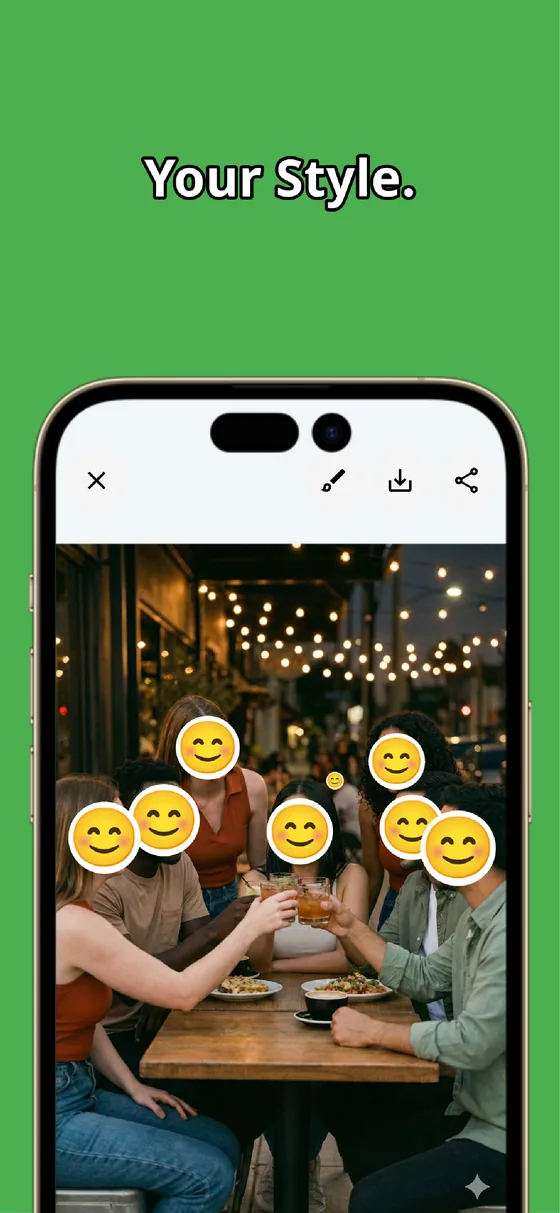
In MozFace, you hide text with the manual brush you trace with your finger. Pick mosaic or blur, shrink the brush to match a line of text, and trace along the name or number. Raise the strength until the text can’t be read — for a phone number or an address, push it higher so nothing can be pieced back together.
There is no limit to how many spots you cover, so you can handle a name at the top, a number in the middle, and an email at the bottom in one pass. The original screenshot is left untouched; the edited version saves as a separate file you share instead.
Check, redo, and keep faces covered too
If a stroke lands slightly off, a one-tap undo lets you redo just that part rather than starting over. Take a moment to scan the whole frame before you save — the status bar, a notification preview, the corner of another app — and brush over anything you missed.
If the screenshot includes a photo with faces — a profile picture, a shared image — MozFace detects faces automatically the moment you pick it and opens with them already blurred, so you tap to reveal only the ones that are fine to show. And because everything runs on-device, your screenshot never leaves your phone.
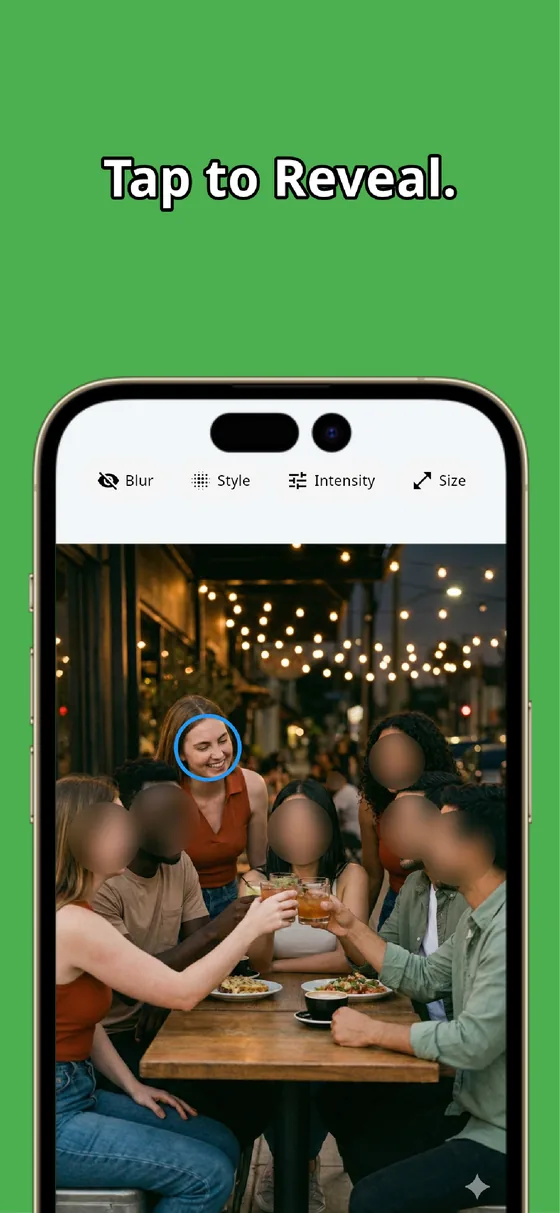
A screenshot shares the whole screen, not just the part you meant. Trace each name, number, and address with the manual brush and raise the strength so the text can’t be read, let auto-detect cover any faces, and give the frame one last scan. In under a minute you have a screenshot that is safe to send.
MozFace
Auto-mosaic or blur every face just by picking a photo. Cover names, numbers, and labels with the manual brush. Everything runs on your device, fully offline.
Learn more about MozFaceFrequently asked questions
Can't I just crop the screenshot instead?
Often not. The sensitive text usually sits right next to what you want to show, so cropping it away would remove the point of the screenshot. Tracing each field with the manual brush lets you hide the names and numbers while keeping the part you meant to share.
Is a thin line over a phone number enough?
A thin scribble can still be read digit by digit. With the manual brush you can match the brush to the line of text and raise the strength until the number can’t be read, which is far more reliable for sensitive data.
Can I hide several names and numbers in one screenshot?
Yes. There is no limit to how many spots you trace, so a name at the top, a number in the middle, and an email at the bottom can all be covered in one pass. A one-tap undo lets you redo any stroke that lands off.
Does my screenshot get sent anywhere?
No. In MozFace, editing and any face detection happen entirely on your device, and your screenshots are never sent to an external server. It works even with no signal.