We are the MozFace team. A profile picture in a messaging app — WhatsApp, Messenger, or whichever one you use — is seen by everyone in your contacts, and sometimes by strangers who only have your number. Plenty of people want a photo they like without putting their bare face out there. The usual fix is to crop tightly or grab a side shot, but that limits the pictures you can use. This article shows how to take a photo you actually like and hide just the face, so you can use it as an icon with peace of mind.
Why a profile photo deserves a second look
A messaging app icon is small, but it travels far. It shows next to every message, in group chats with people you barely know, and sometimes to anyone who adds your number. If you would rather not be instantly recognizable from it, you do not have to give up the photo you like — you just need to hide the face cleanly while keeping the rest of the picture.
Drawing over the face by hand in a basic editor tends to leave an edge or thin out into something still recognizable, and a tiny circular icon makes any rough patch obvious. A reliable, even cover looks far better at icon size.
Auto-detect the face and adjust the strength
The moment you pick a photo, MozFace runs on-device AI that detects the face and opens with it already blurred. From there you can adjust the strength — a light blur that still hints at the mood, or a heavy one that hides you completely. You tune it until the icon feels right rather than starting from a blank brush.
All processing stays on the device, and your photos are never sent anywhere. The picture you turn into an icon never leaves your phone in its original form.
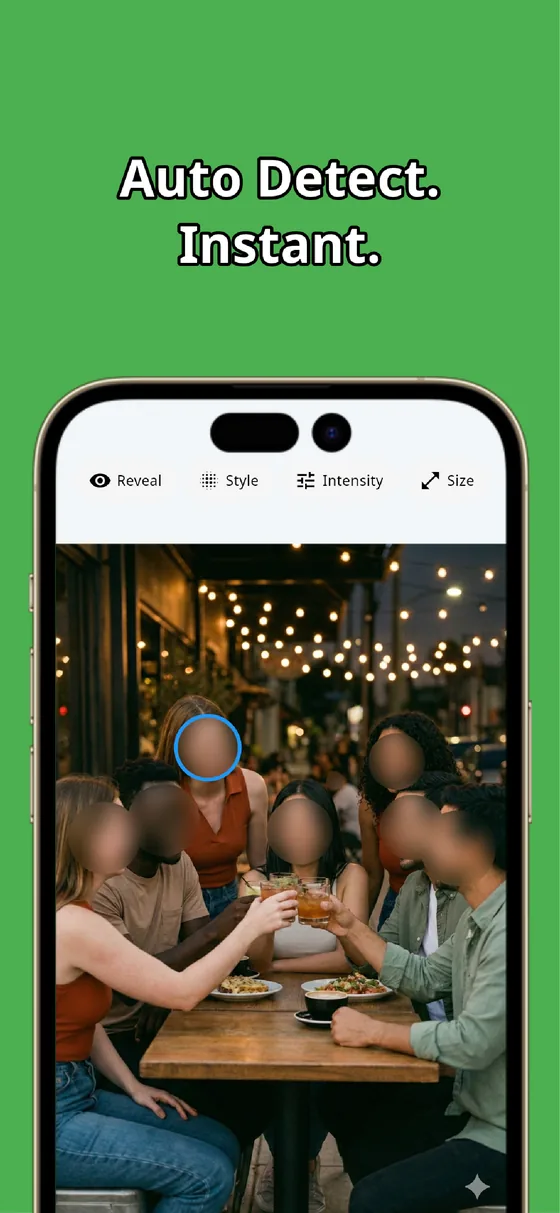
Tap to reveal, then save and crop into an icon
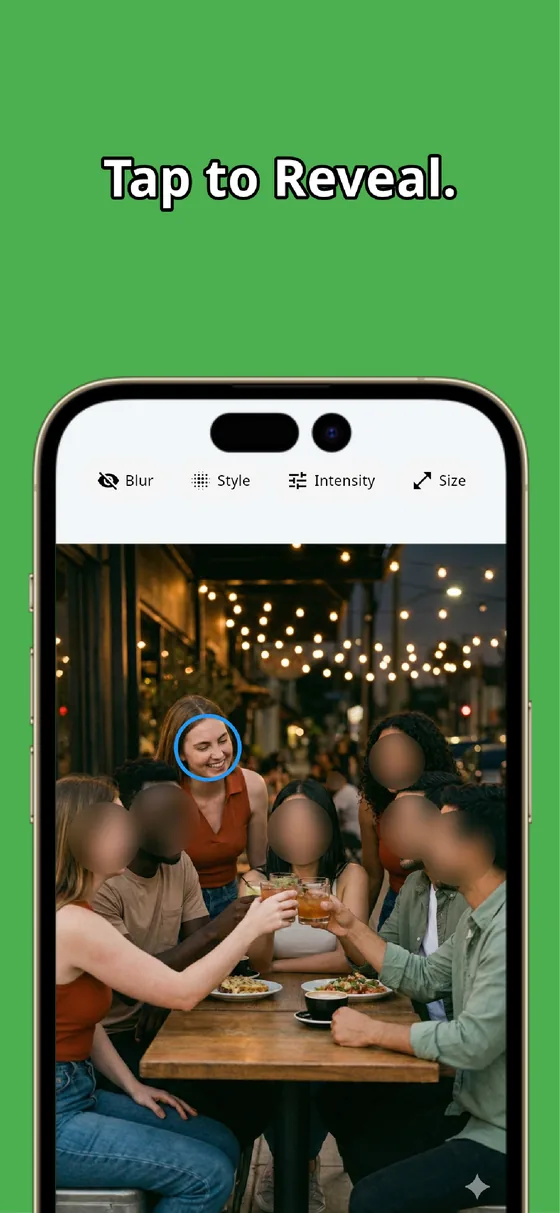
Sometimes a photo has more than one person — a friend, a pet owner with their pet, a group shot. Because every face opens blurred, you can tap a single face to reveal it and leave the others hidden. If you want only your own face covered, tap the rest back to clear. Hiding is the starting state, so you choose what to show rather than remembering to hide.
When it looks right, save it. The finished photo is written as a separate file, so your original stays untouched. Then set that saved image as your profile photo and crop it to the icon area inside your messaging app.
A profile photo you like without showing your face is three steps away: auto-detect the face, adjust the strength, then save and crop it into an icon. Whether a hidden face suits the way you use the app is your call — MozFace just makes the cover clean and even.

MozFace
Auto-blur every face just by picking a photo, then adjust the strength and tap to reveal what you want. Everything runs on your device, fully offline.
Learn more about MozFaceFrequently asked questions
Can I use a photo I like instead of cropping tightly?
Yes. Instead of cropping or using a side shot, you can take the photo you like, hide just the face, and keep the rest of the picture as your icon.
Can I make the blur lighter or heavier?
Yes. After the face is detected and blurred, you can adjust the strength — a light blur that hints at the mood, or a heavy one that hides you completely.
There are two people in the photo. Can I hide only mine?
Yes. Every face opens blurred, so you tap the faces you want to show to reveal them and leave your own covered.
Are my photos ever sent over the internet?
In MozFace, face detection and editing happen entirely on your device, and your photos are never sent to any external server. It works even with no signal.