We are the MozFace team. A concert ticket, an event entry QR, a membership barcode — post any of these in a photo on social media and someone can scan the code and use it fraudulently. There are real stories of people excitedly posting a screenshot of "Got my ticket!" only for a stranger to get in first. This article is about reliably hiding QR codes and barcodes in your photos.
"Sort of hidden" still gets scanned
The tricky thing about QR codes and barcodes is that a machine can read them as long as part is visible. QR codes have built-in error correction, designed to be recovered and read even when partly missing. So a half-hearted cover can still pass when run through a scanner app.
Even a hand-drawn mosaic or fill from your phone's built-in editor can be too thin, or leave a gap at the edge, and the code may be reconstructed from there. "Looks hidden" and "can't be read by a machine" are two different things, and when hiding a code you need to aim for the latter.
Crush the whole code with the manual brush
MozFace blurs faces automatically, but you can hide non-face areas freely with the manual brush. For a QR code or barcode, just trace over it with your finger. Choose mosaic or blur, and if you turn the strength up, the code's pattern is completely crushed and can no longer be read. The trick is to make the brush large and cover the whole code, margins included.
If you're worried about a gap at the edge, trace a little past the outside of the code to be safe. A single tap undoes a mistake, so you can adjust until you're satisfied. Think not just "make it invisible" but "make it unreadable," and cover it firmly.
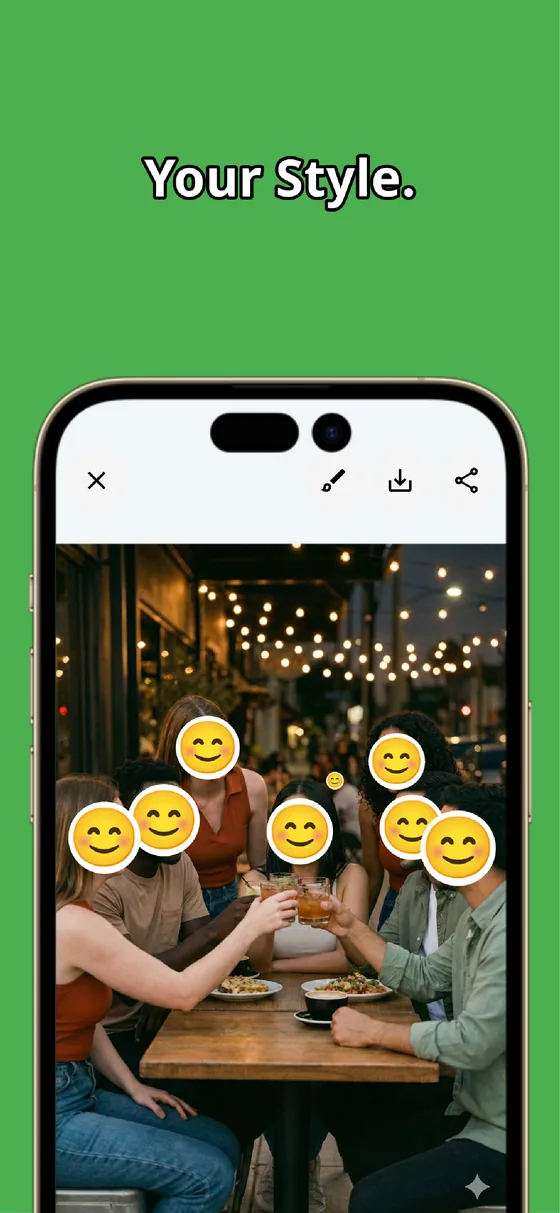
Hide faces and the code together in one photo
Ticket and event photos often have your own or a friend's face in the shot alongside the QR code. With MozFace, you can blur faces with automatic detection and crush the QR or barcode with the manual brush — all on the same screen. No bouncing between one app for faces and another for codes.
A QR or barcode being "visually hidden" isn't enough; the key is to crush it past the point a machine can read it. Cover the whole code with the manual brush, margins and all. To avoid having a right unknowingly stolen from a post, make this extra step before posting a code a habit. Editing happens entirely on the device, so your ticket image is never sent anywhere.
MozFace
Auto-mosaic or blur faces, and cover QR codes or addresses with the manual brush. Handle everything you want to hide in one photo. Fully offline.
Learn more about MozFaceFrequently asked questions
Does hiding part of a QR code make it unreadable?
QR codes have a mechanism that lets them be recovered and read even when partly missing, so a half-hearted cover risks being scanned. It's safest to cover the whole code firmly, margins included.
Can MozFace hide a QR code or barcode?
Yes. You can trace over non-face areas with the manual brush. Turn the mosaic strength up and cover until the code's pattern is completely crushed, and it can no longer be read.
Can I hide a face and a QR code in the same photo?
Yes. Blur faces with automatic detection and crush the QR or barcode with the manual brush — all on the same screen. No need to bounce between apps.
Is my ticket image sent anywhere?
In MozFace, editing happens entirely on your device, and your photos are never sent to any external server. It works even with no signal.