"What was I even doing back then?" Try to recall your life from a month ago and surprisingly little comes back. A lifelog — a record of your daily actions and moods — fixes exactly that blank. We're the team behind OneTapLog, and we've long chased a form of lifelog that's actually easy to keep.
This article covers what a lifelog app is, how automatic and manual logging differ, and how to start a loose, text-based lifelog — one line at a time. It's for anyone who wants to keep a casual record without overthinking it.
What is a lifelog app?
A lifelog app records your daily actions, moods, and events so you can look back on them later. What you did, where you went, how you felt — keeping the everyday as a "log" helps you understand your patterns and preserve memories.
There are two broad ways to record: automatic logging using GPS and step counts, and manual logging where you write a line yourself. Each is good at something different, so it's worth choosing by your goal.
Automatic vs. manual logging
Automatic logging is convenient — just carry your phone and your movement and steps are recorded. But it only captures what can be measured. The why and the how-you-felt don't get saved.
Manual logging's strength is capturing the moment in your own words. "Took a walk, mood lifted," "Long meeting, wiped out" — the substance of a day that numbers can't show. It might sound like effort, but with a setup where you only write one line, that burden is nearly nothing.
A "one-line text" lifelog hits the sweet spot
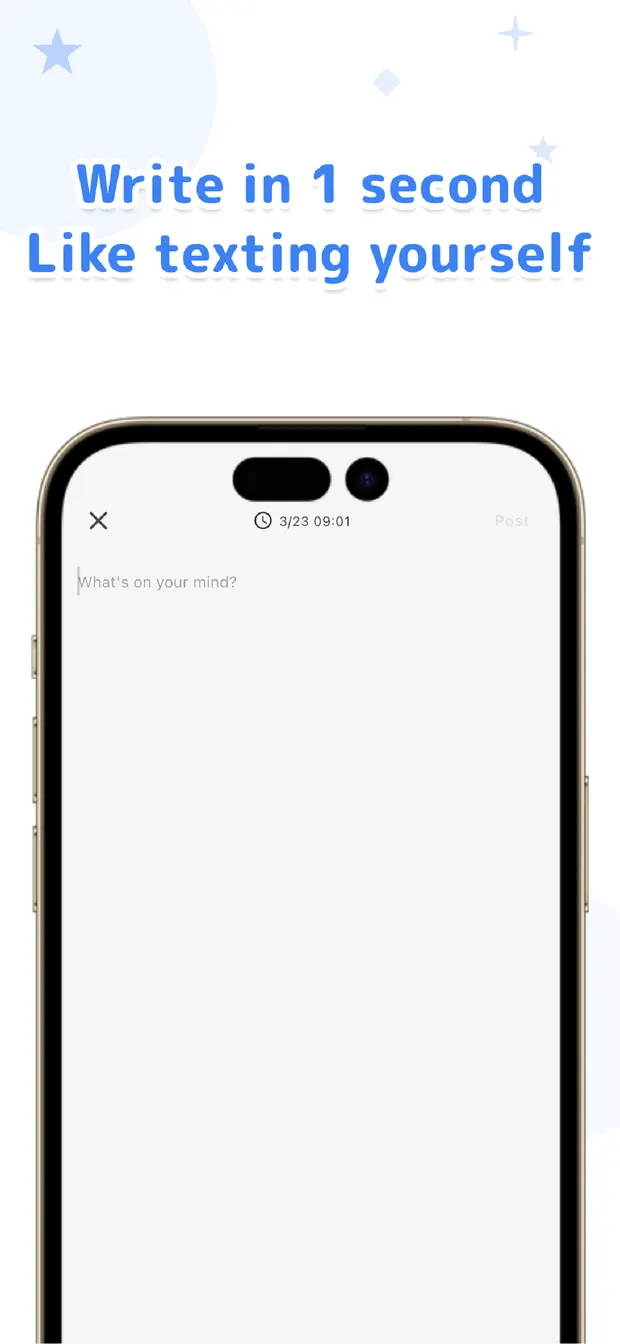
With OneTapLog, we aimed to bring manual logging's strength (capturing things in words) close to automatic logging's ease. The moment you open it, the keyboard is up and you just send a line about what you just did. No date picker, no page to find.
Add tags like #walk #reading #eatout and you can later filter to just those actions. Photos, audio, and video attach too, so even a text-first log has plenty of range.
Tags and a calendar reveal your life
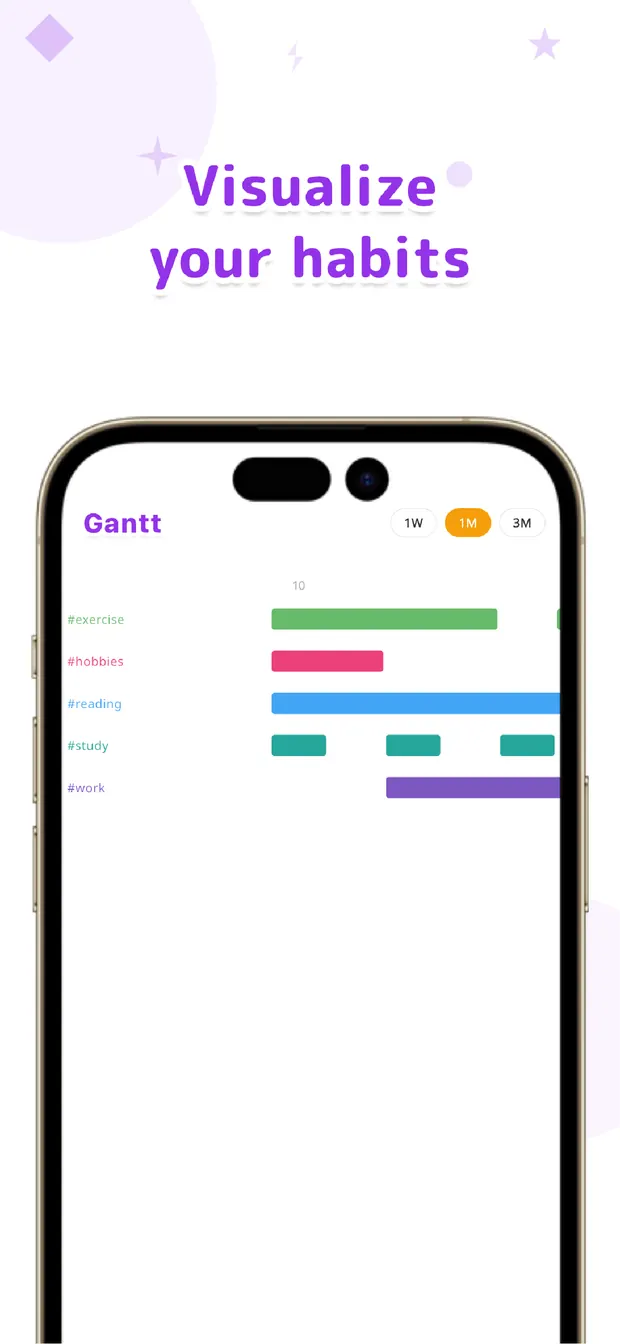
The real payoff of a lifelog is the looking back. In OneTapLog, records by tag appear as bars on a Gantt chart and a calendar. Trends in your life — "I worked out a lot last month," "Reading has stalled lately" — come into view at a glance.
With full-text search, "when did I go to that cafe?" is easy to find. As your one-line logs pile up, they become a map you can survey your own life from.
Summary: start with one line about what you just did
A lifelog gets harder to keep the more you overthink it. Automatic logging captures numbers; manual logging captures feelings and context. Using both is fine, but starting with a loose, one-line text lifelog is the easiest way in. With OneTapLog, you open it and send what you just did. Log today's actions, one line at a time.
OneTapLog
A 1-second logging app for one-line lifelogs. Review with #tags and a calendar. No account, free to start.
Learn more about OneTapLogFrequently asked questions
What is a lifelog app?
An app that records your daily actions, moods, and events so you can look back on them. There's automatic logging via GPS and step counts, and manual logging where you write a line yourself.
Automatic or manual — which is better?
It depends on your goal. For movement and steps, automatic; for capturing feelings and what you did in words, manual. OneTapLog does manual logging in just one line, so the burden is low and it's easy to keep.
Is a text-only lifelog worthwhile?
Yes. The substance of a day that numbers can't show — moods, events, context — can only be captured in text. Add #tags and you can review trends in your actions later, too.
Is my logged data sent anywhere?
OneTapLog is local-first — data is stored on your device. It works with no account and offline. Cloud sync is used only as a backup when you turn it on.