We are the MozFace team. A great travel photo is rarely empty — a famous landmark, a busy street, a packed viewpoint all come with crowds. So when you frame the scene, dozens of strangers end up in the shot. Posting it untouched to Instagram or a travel blog can put faces online that their owners never agreed to share, and that occasionally turns into a complaint. This article covers how to clear the passersby out of a crowded travel photo quickly.
Why crowded travel photos are tricky
At popular spots, you cannot avoid having strangers in the frame. Waiting for a clear shot is often impossible, and the scene is the reason you are there. The result is a photo where you are the subject but ten other faces are recognizable around you.
Painting over each one by hand is the obvious fix, but in a real crowd it is slow and easy to miss a face half-hidden behind a shoulder or in the distance. The more people, the more likely one slips through — which is exactly the kind of photo that causes problems after posting.
Auto-detect every passerby at once
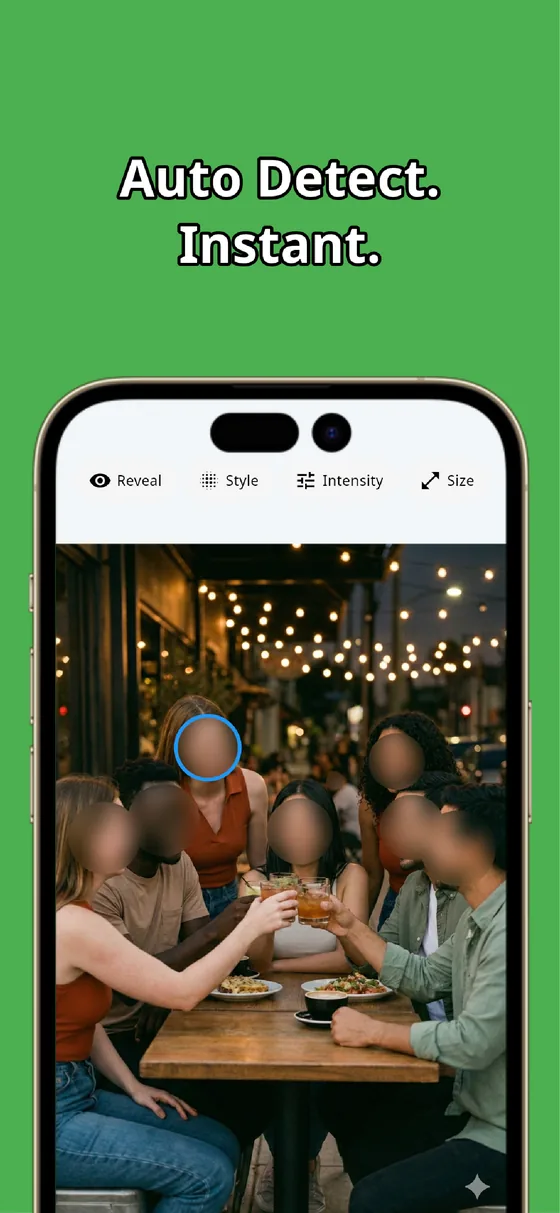
The moment you pick a photo, MozFace runs on-device AI that detects every face in the frame and opens with all of them blurred. In a crowd, this is the difference that matters: people in the background and off to the side are covered together, so the "missed someone in the distance" mistake does not happen. All processing stays on the device, and nothing is uploaded.
You and your travel companions are blurred too at first, but a single tap on a face reveals it. Because everyone starts hidden, your job becomes choosing who to show rather than hunting for who to hide — far quicker than going face by face.
Fine-tune the rest with the manual brush
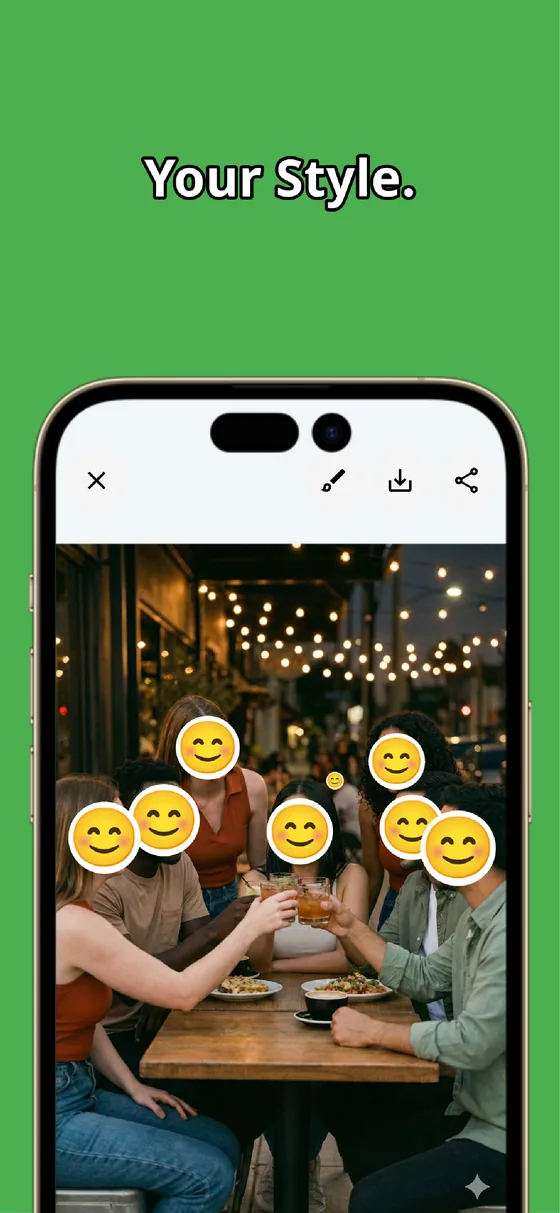
A face turned away or far in the distance may not be picked up automatically. For those, the manual brush lets you trace over the spot with your finger. Choose mosaic or blur, set the strength, and you can cover a back of a head or a faint figure just as firmly.
The same brush handles things that are not faces — a name badge on a tour group, a license plate on a parked car. Auto-detect clears the crowd, the manual brush catches the leftovers, and the scenery you came for stays untouched. The result saves as a separate file, so your original travel photo is preserved.
A crowded landmark does not have to mean a photo you cannot share. Let auto-detect blur the whole crowd at once, then sweep the edges with the manual brush. Whether a given photo is fine to post is ultimately your judgment, but clearing the strangers first removes most of the worry.

MozFace
Auto-mosaic or blur every face just by picking a photo. Catch the leftovers with the manual brush. Everything runs on your device, fully offline.
Learn more about MozFaceFrequently asked questions
Can it blur a whole crowd of passersby at once?
Yes. MozFace detects every face it can find and opens with all of them blurred, so people in the background and off to the side are covered together. You then tap to reveal only the faces you want to show.
What about a face that auto-detect misses?
A face turned away or far in the distance may not be picked up. Trace over it with the manual brush, choose mosaic or blur, and adjust the strength to cover it firmly.
Does the scenery stay intact?
Yes. You only blur or mosaic the faces and details you choose, so the landmark and the view you came for remain as sharp as the original.
Are my photos ever sent over the internet?
In MozFace, face detection and editing happen entirely on your device, and your photos are never sent to any external server. It works even with no signal while you travel.