We are the MozFace team. You go to post a favorite shot and notice a stranger walking by, or someone who happened to be standing there, clearly in the background. The subject is you or your friends, yet you'd be putting an unrelated person's face out into the world too — and you hesitate. Publishing a third party's face without consent is best avoided, for privacy and to steer clear of trouble. This article is about hiding only the strangers in the background, cleanly.
Painting over background strangers tends to look unnatural
With your phone's built-in editor, hiding a background person usually means either drawing over them by hand or using a "remove" tool. Hand fills leave ragged, unnatural edges, and the remove tool can leave a person-shaped scar in the background that actually stands out more.
And with several people in the background, processing them one at a time is a heavy chore. In crowds or at tourist spots, it's easy to miss the small faces toward the back, and the hard part is that you can't fully confirm on your own whether you hid everyone.
Background faces, auto-detected together
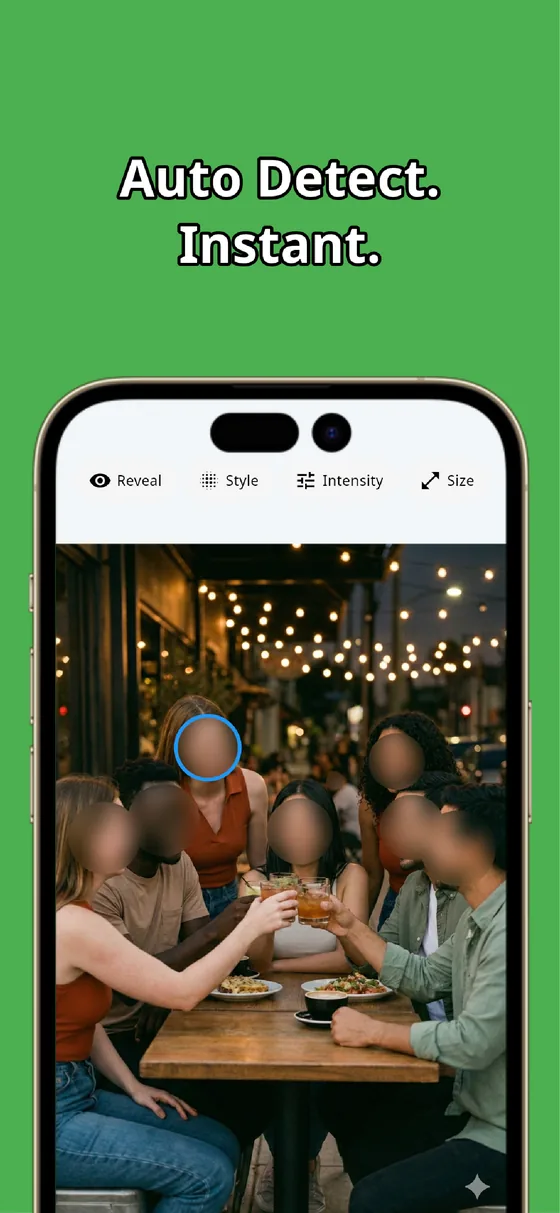
The moment you pick a photo, MozFace runs AI that detects every face in the frame. Not just the people in front, but the small faces of passersby in the background too — and it opens with everyone already blurred. There's no hunting and painting each one, so misses are far less likely.
Choose mosaic, blur, or a stamp, and adjust the strength. For background people, a frosted-glass blur keeps the photo looking natural while making faces unrecognizable. No unnatural scar left behind like with painting over.
Tap to show the subject, keep the background hidden
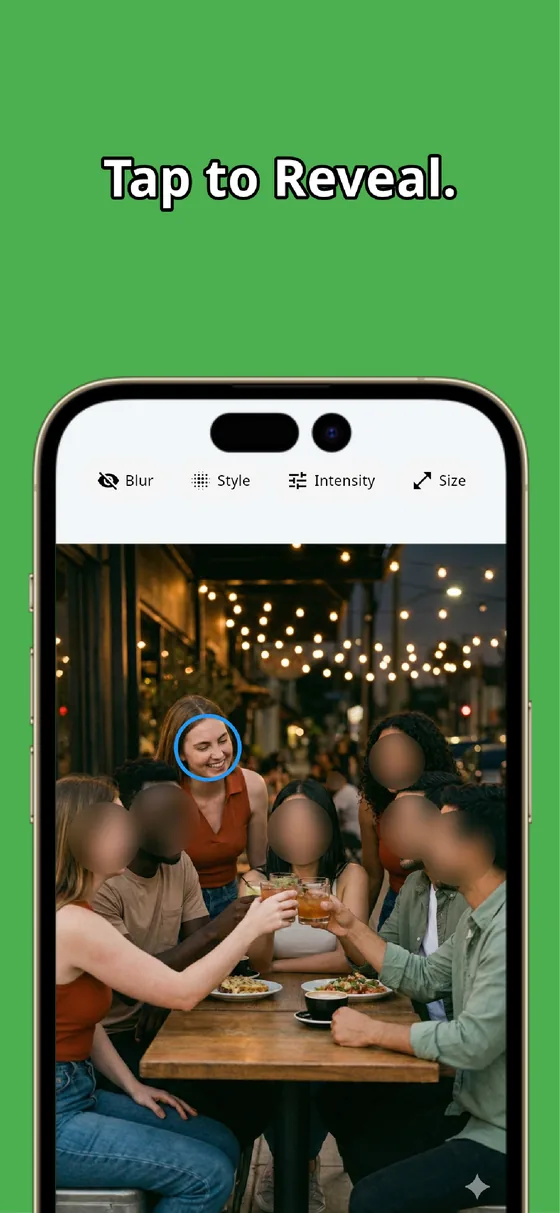
From the all-hidden state, tap only the subject's face to reveal it. Tap yourself or your friend and that face appears, while the strangers in the background stay blurred. Since all you do is tap who you want to show, it doesn't matter how many people are in the background — the work is the same.
Because hiding is the starting state, you're far less likely to forget a stranger in the background. Everything runs on the device, so your photos are never sent anywhere, and the finished photo saves as a separate file.
Background strangers come out unnatural when painted or erased, and they get missed. Auto-blur everyone, then tap to reveal only the subject. In that order, even crowd or tourist-spot shots let you cleanly hide the unrelated faces and post with peace of mind.

MozFace
Auto-mosaic or blur every face just by picking a photo. Tap to reveal only who you want to show. Fully offline.
Learn more about MozFaceFrequently asked questions
Can it detect small faces in the background?
MozFace detects not just the people in front but the small faces in the background too, and blurs them together. If a hard-to-detect profile slips through, you can hide it with the manual brush.
Is it better to "remove" or "blur" a background person?
Removing tends to leave a person-shaped scar in the background that looks unnatural. Blur or mosaic keeps the photo looking natural while making the face unrecognizable, so blur suits background strangers.
Can I show the subject but hide only the background people?
Yes. Everyone starts hidden, so tap only the subject's face to reveal it, and the strangers in the background stay blurred while just the subject shows.
Are my photos ever sent over the internet?
In MozFace, face detection and editing happen entirely on your device, and your photos are never sent to any external server. It works even with no signal.