We are the MozFace team. There are moments when sending a photo of your ID card or driver license is unavoidable — proving an address, confirming your age, or completing a sign-up. But the photo you send usually shows far more than the one detail being checked: a license number or social security number, your full address, your date of birth, and your photo, all in a single frame. This article walks through what to mask on an ID photo and how to do it so the document still does its job without exposing everything on it.
An ID card carries more than the detail being checked
A driver license or national ID card packs several pieces of sensitive data into one card: your license or ID number, full name, date of birth, address, and photo, often with a signature and an issuing authority. When a service asks you to confirm just your name or your age, the rest is along for the ride whether you want it there or not.
A license or SSN-style number is especially worth protecting, because it can identify you across systems and is hard to change. Once an ID photo is in someone else's inbox or chat thread, you no longer control how long it is kept or who else sees it — so it is worth covering anything that is not strictly needed before you send.
Mask the number and details with the manual brush
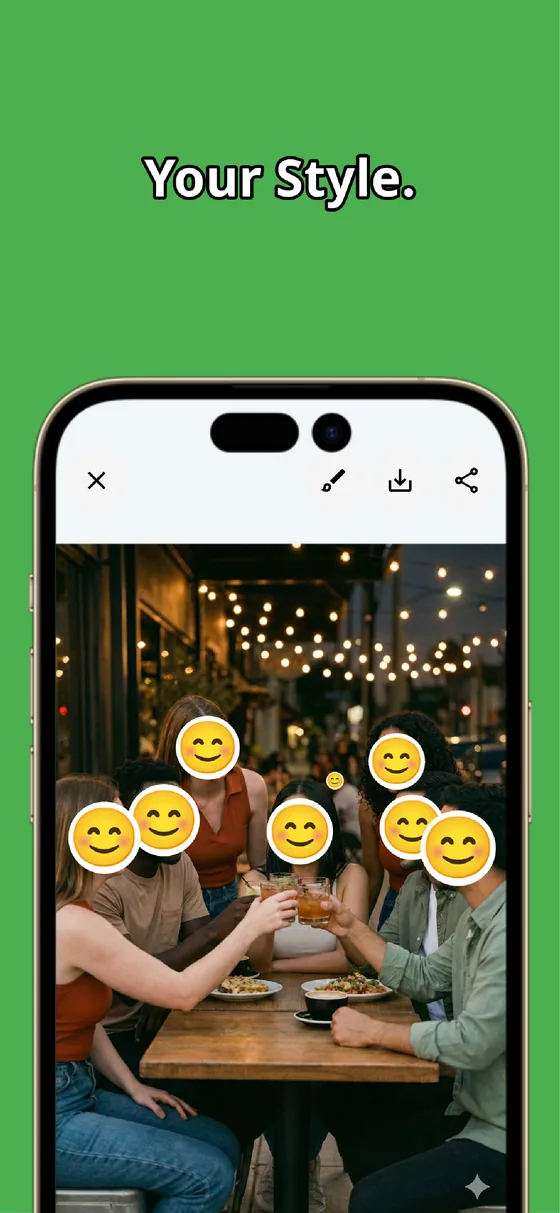
MozFace lets you mask just the parts you choose with a manual brush you trace with your finger. Drag over the license number, the address line, or your photo, then pick mosaic, blur, or a stamp. Adjust the brush size to match a single line of digits or a small portrait, and leave the rest of the card readable so it still proves what it needs to.
You stay in control of what shows. If a service needs your name and expiry but not your number, mask the number alone. Because the brush only touches what you trace, you never have to crop away whole sections of the card just to remove one field.
Raise the strength and reveal to double-check
Numbers and small print can survive a light blur if someone enlarges the image. MozFace lets you raise the strength until the characters dissolve into an unreadable block, and use a heavier mosaic where you want to be sure nothing is recoverable. The edited photo saves as a separate file, so your original card scan stays intact.
Before sending, confirm each cover holds. Because you place every mask yourself, you can tap to reveal and recheck a spot, then cover it again if needed, so no digit slips through. Whether it is appropriate to share an ID at all, and which fields a given request really needs, is a judgment only you can make — the app simply gives you a clean way to mask what you decide to hide.
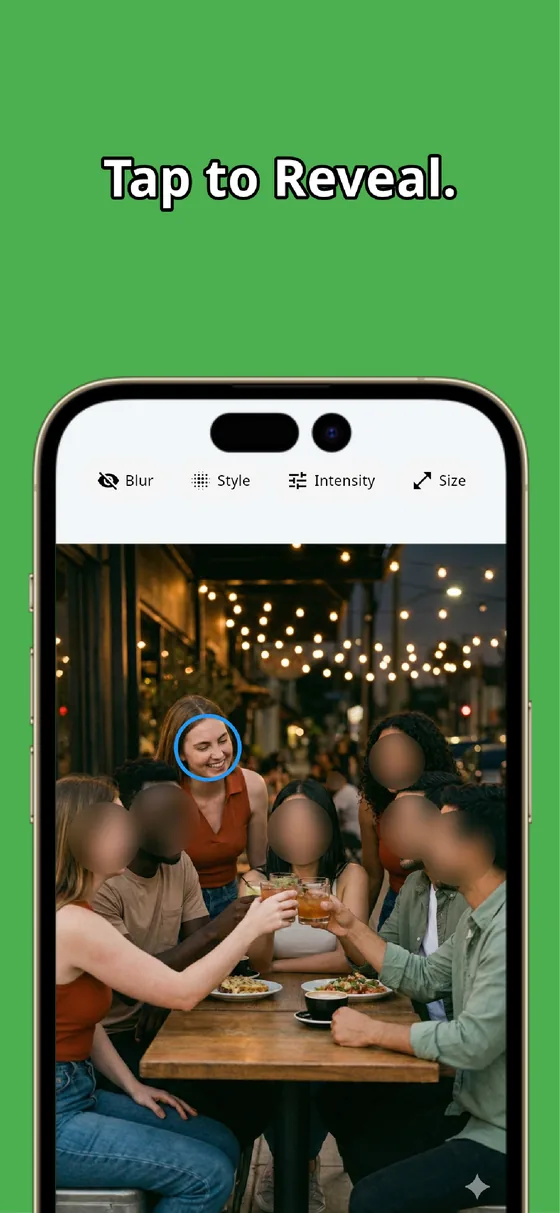
An ID photo can prove what a service needs without exposing every field printed on it. Mask the number and any details you do not want shared with the manual brush, raise the strength, and recheck by revealing. In under a minute you have a photo that does its job and keeps the rest private.
MozFace
Auto-mosaic or blur every face just by picking a photo. Mask ID numbers and addresses with the manual brush. Everything runs on your device, fully offline.
Learn more about MozFaceFrequently asked questions
What should I mask on an ID card or driver license photo?
Typically the license or ID number, your address, date of birth, and your photo if they are not needed. Mask whatever the request does not actually require, and leave only the field being checked readable.
Can I hide just the number and keep my name visible?
Yes. The manual brush covers only the spots you trace, so you can mask the number alone and leave your name and expiry readable, without cropping away whole sections of the card.
Should I really share an ID photo at all?
That is a judgment only you can make, based on who is asking and why. MozFace does not decide for you — it simply gives you a clean way to mask the fields you choose to hide before you send.
Are my photos ever sent over the internet?
In MozFace, detection and editing happen entirely on your device, and your photos are never sent to any external server. It works even with no signal.