We are the MozFace team. A YouTube or stream thumbnail is the still image that decides whether anyone clicks, so creators are picky about it — and many also need to hide things in it: a passerby's face, a license plate caught in a vlog, a bystander who did not agree to appear. Doing that on a single thumbnail with a phone's basic editor is fiddly. This article walks through detecting faces and plates, mosaicking exactly what you need, and saving a clean thumbnail image.
A thumbnail is a single image you can mosaic precisely
MozFace is not a video editor — it works on one still image. For a thumbnail that suits it perfectly: you take the frame you want as your cover (a screenshot from the video, or any photo you plan to use), mosaic what needs hiding, and set the saved image as the thumbnail when you upload. The thumbnail is exactly the kind of single, high-stakes image where a reliable mosaic pays off.
What usually needs covering is not just faces. A license plate in a car or travel video, a bystander in the background, a sign with an address — any of these can end up on a thumbnail that thousands will see. A hand-drawn scribble over them can leave a readable edge, which is why precise detection plus a manual mosaic works better.
Auto-detect faces and plates first
The moment you pick the image, MozFace runs on-device AI that detects faces and license plates and opens with them already covered. The bystander in the corner and the plate on a parked car are handled together, so you do not start by hunting for them. If your own face is the point of the thumbnail, a single tap reveals it again.
All processing stays on the device, and your photos are never sent anywhere. The frame you build your thumbnail from never leaves your phone.
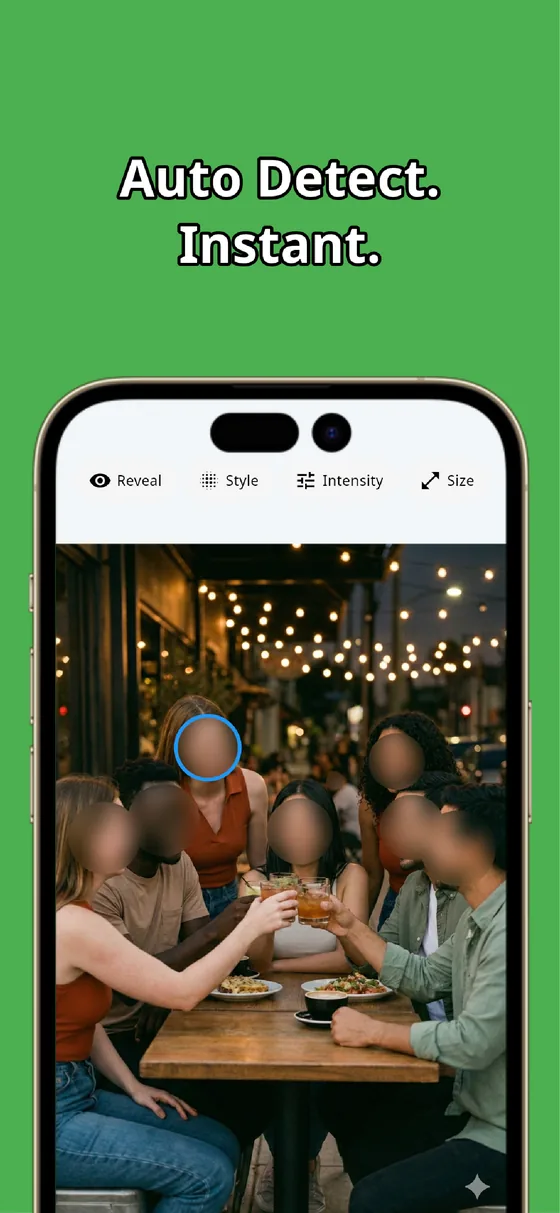
Add a manual mosaic and pick the strength
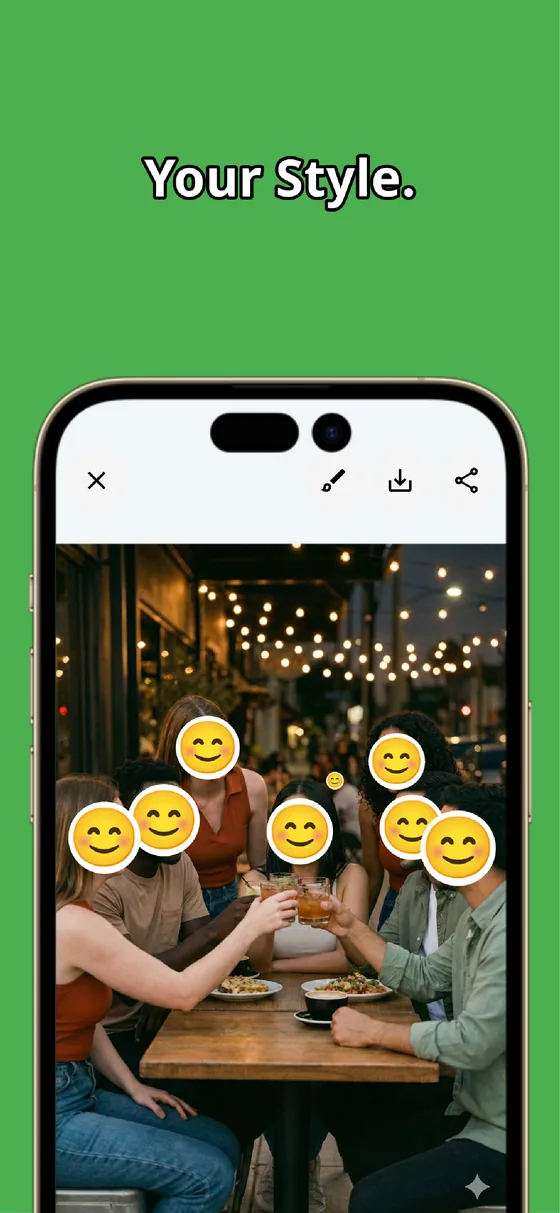
For anything detection does not catch — a sign, a logo, a reflection — use the manual brush you trace with your finger, then choose mosaic, blur, or a stamp and adjust the strength. A coarse, strong mosaic reads as a deliberate thumbnail style and makes text unreadable; change the brush size and it covers everything from a wide plate to a thin line of text.
When the thumbnail looks right, save it. The finished image is written as a separate file, so your original frame stays untouched. Then set that saved picture as the video's thumbnail when you upload.
A clean YouTube thumbnail comes down to: auto-detect faces and plates, add a manual mosaic where needed, then pick the strength and save. What counts as appropriate to show on your channel is your call — MozFace just makes covering it fast and precise.

MozFace
Auto-detect faces and plates, then mosaic anything else by hand and pick the strength. Save a clean thumbnail. Everything runs on your device, fully offline.
Learn more about MozFaceFrequently asked questions
Does MozFace edit the video?
No. MozFace works on a single still image. For a thumbnail, you take the frame you want as the cover, mosaic what needs hiding, and set the saved picture as your thumbnail when you upload.
Can it cover a license plate too, not just faces?
Yes. Detection covers faces and license plates automatically, and for anything else — a sign, a logo, a reflection — you can trace it with the manual brush and mosaic it.
Can I keep my own face visible while hiding others?
Yes. Every detected face opens covered, and a single tap reveals one again, so your own face can stay visible while a bystander stays hidden.
Are my photos ever sent over the internet?
In MozFace, detection and editing happen entirely on your device, and your photos are never sent to any external server. It works even with no signal.