We are the MozFace team. A group photo from a party, a reunion, or a team event is exactly the kind of thing you want to post — but not everyone in it has agreed to appear online. Some people are private about social media, some you simply could not ask. Posting the photo as-is puts their faces on Instagram or Facebook without their say. This article covers how to share the group shot while hiding the people who did not consent.
Consent in a group photo is not all-or-nothing
In a group photo, some people are happy to be tagged and others are not. A coworker who avoids social media, a friend's partner you have just met, a child whose parent prefers privacy — within the same frame, the right answer differs person by person. Posting it whole ignores that, and deleting after a complaint is too late.
Hiding only certain people by hand is fiddly, especially in a tightly packed group where faces overlap. It is easy to blur the wrong person or miss someone at the edge. What you want is to keep a few faces visible and cover the rest cleanly.
Auto-detect first, then reveal who is fine
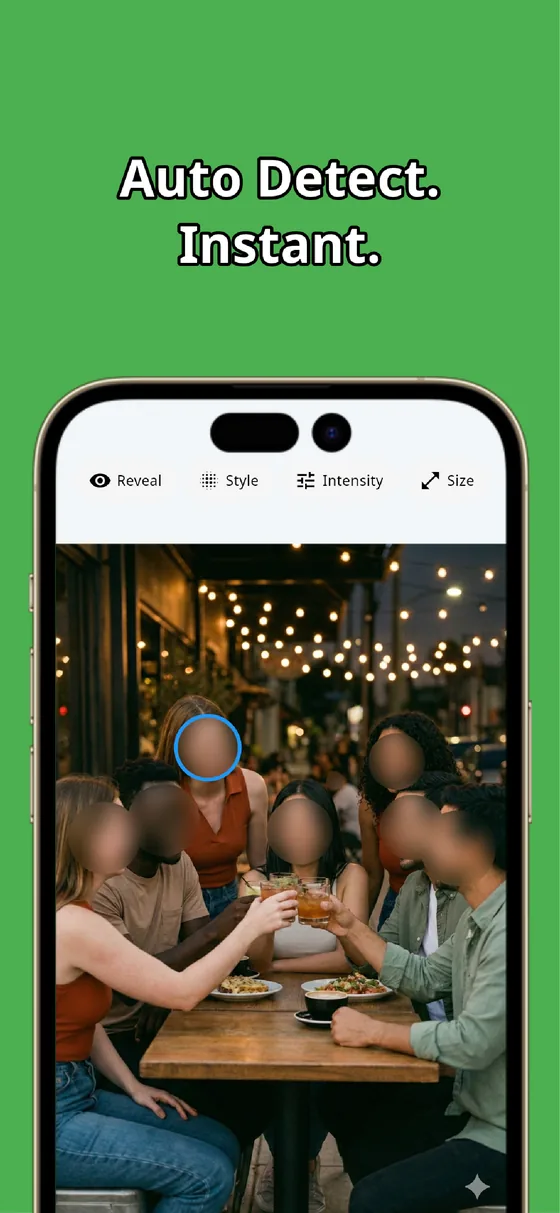
When you pick the photo, MozFace runs on-device AI that detects every face and opens with all of them blurred. From this all-hidden start, you tap only the people who are fine being shown to reveal them. Everyone you do not tap stays blurred — so the default protects the people you have not cleared.
This is far safer than the reverse. If you had to hide people one by one, forgetting one would expose them; here, forgetting one simply leaves them hidden. All processing stays on the device, and your photos are never uploaded.
Pick a blur style that still looks good
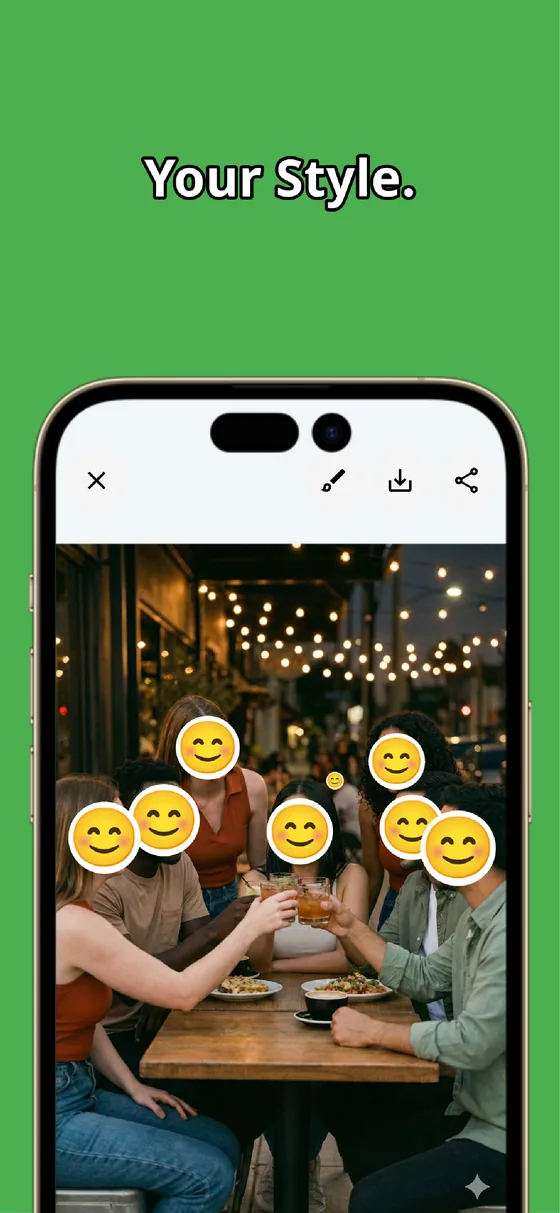
For the people you hide, you can choose mosaic, soft blur, or a stamp and set the strength. A light blur keeps the group photo looking natural while still covering the face, and a playful stamp can feel friendlier than a hard mosaic for a casual post.
You can also brush over anything else that should not be shared — a name tag, a school logo on a uniform. The faces you cleared stay sharp, and the finished photo saves as a separate file, so the original group shot is preserved.
Sharing a group photo does not mean putting everyone in it online. Start from all faces hidden, reveal only the people who are fine with it, and choose a style that still looks good. Whether someone has truly consented is ultimately your judgment — the app makes acting on that judgment quick and reliable.
MozFace
Every face starts blurred — just tap to reveal the people who are fine being shown. Choose the blur style that fits your post. Everything runs on your device, fully offline.
Learn more about MozFaceFrequently asked questions
Can I hide only some people in a group photo?
Yes. MozFace opens with every face blurred. You tap only the people who are fine being shown to reveal them, and everyone you do not tap stays hidden, so the default protects anyone you have not cleared.
Why is starting from all-hidden safer?
If you had to hide people one by one, forgetting someone would expose them. Because everyone begins blurred, forgetting someone simply leaves them hidden, which is the safer mistake to make.
Can the blur still look natural?
Yes. You can choose mosaic, soft blur, or a stamp and adjust the strength, so the covered faces can blend into a casual post rather than standing out harshly.
Are my photos ever sent over the internet?
In MozFace, face detection and editing happen entirely on your device, and your photos are never sent to any external server. It works even with no signal.