We are the MozFace team. You want to post a photo on X, but you'd rather not show your own face or a friend's. You want to share an event or a day out without being identified — we hear this a lot. X spreads fast, so once a face goes up, it can travel widely. This article is about reliably hiding faces in your X posts.
You can't hide faces inside the X app
First, know that the X (formerly Twitter) compose screen has no face-blur feature. When you attach a photo you can crop and adjust brightness, but there's no button to add a mosaic or blur. So if you want to hide a face, you need to edit it elsewhere before posting to X.
Trying to hide it with your phone's built-in editor doesn't help much either — there's no dedicated mosaic, only drawing over it by hand. The strokes come out rough, and with several friends in the shot you end up painting each one. When "this chore every time I post" sets in, you start posting with faces showing just to skip it. That's the trap.
Blur faces automatically before you post
Pick a photo and MozFace runs AI that detects every face and opens with everyone already blurred. You, your friends, and anyone in the background are all hidden together. The post is ready in one move, so you don't fall into "too much hassle, I'll skip it this time."
If there's a face you want to show, one tap reveals it. Want to show only yourself and keep friends hidden? That's a single tap. Or leave everyone hidden. Because hiding is the starting state, even a rushed post won't accidentally expose a face.

Match the style to the mood of your post
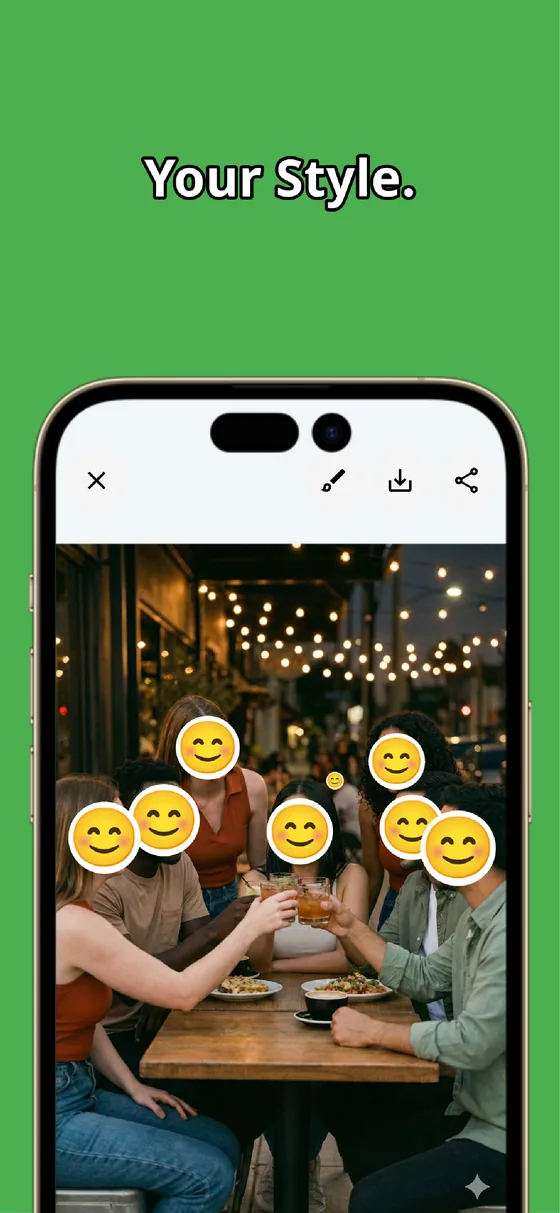
There are three ways to hide: mosaic, blur (Gaussian), and stamps. X posts are often casual, so a frosted-glass blur or an emoji stamp hides only the face without breaking the feel of the photo. When you want it solid, just turn the mosaic strength up.
The finished photo saves to your device, and then you simply pick it on the X compose screen. Editing happens entirely on the device, so the original is never sent anywhere. Because it saves as a separate file, your original photo stays in hand too.
X has no way to hide faces, so the rule is to blur before you post. Hide everyone automatically, then tap to reveal only who you want to show. With this flow, even on fast-moving X you can post photos with peace of mind. Settle the "what about the faces?" question of every post in a few taps.

MozFace
Auto-mosaic or blur every face just by picking a photo. Tap to reveal only who you want to show. Fully offline.
Learn more about MozFaceFrequently asked questions
Can I mosaic a face inside the X app?
The X compose screen has no mosaic or blur feature. You can crop, but to hide a face you need to edit it in another app before posting to X.
Can I show only myself and hide my friends?
Yes. MozFace opens with every face hidden, so tap only the face you want to show (yourself) and your friends stay hidden while you appear.
Can I hide faces without breaking the look of the post?
You can choose blur, mosaic, or a stamp. For casual posts use a frosted-glass blur or emoji stamp; when you want it solid, turn the mosaic strength up.
Does the edited photo overwrite the original?
No. The edited photo is saved as a separate file and your original stays as it is. Everything is processed on your device, and your photos are never sent anywhere.