We are the MozFace team. A TikTok or Instagram Reels cover image is the first thing people see, and plenty of creators want one that hides their face — to stay semi-anonymous, to keep a consistent faceless brand, or simply because they are not ready to be recognized. The catch is that a thumbnail is a single still image, and most editing tools make hiding a face there fiddly. This article walks through how to take one frame, hide the face cleanly, and save it as a cover image you can upload.
A thumbnail is a still image, so edit it like one
It helps to separate two ideas. The video itself is one thing; the cover image you choose for it is a separate still picture. MozFace is not a video editor — it works on a single photo. So the workflow is to grab the frame you want as your thumbnail (a screenshot from the clip, or any photo you plan to use as the cover), hide the face in that image, and then set the finished picture as your cover when you post.
Trying to hide a face on a thumbnail with a phone's built-in editor usually means drawing over it by hand, which can leave a gap or thin out into something still recognizable. For a cover image that thousands of people may scroll past, that is exactly where you want reliability.
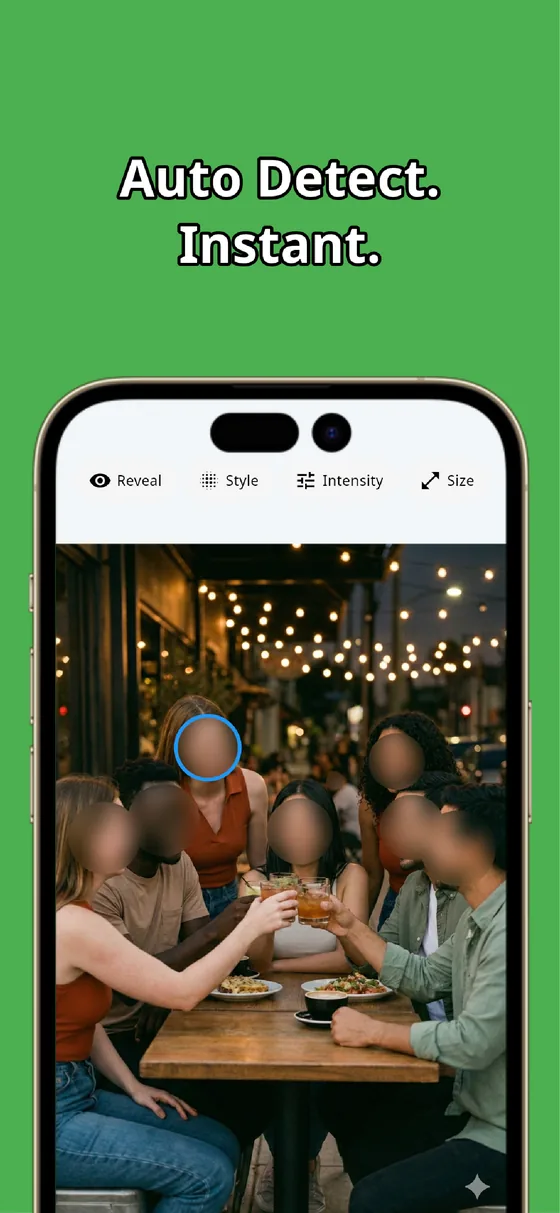
Auto-detect the face the moment you open the photo
The moment you pick the image, MozFace runs on-device AI that detects the face and opens with it already covered. You do not have to find the face and trace around it — it is hidden from the start, so the thumbnail is half-done before you touch anything. If there are several people in the frame and you want to show some of them, a single tap on a face reveals it again.
All processing stays on the device, and your photos are never sent anywhere. For a cover you will publish widely, that on-device guarantee matters: the original frame never leaves your phone.
Pick the style and strength that fits your channel
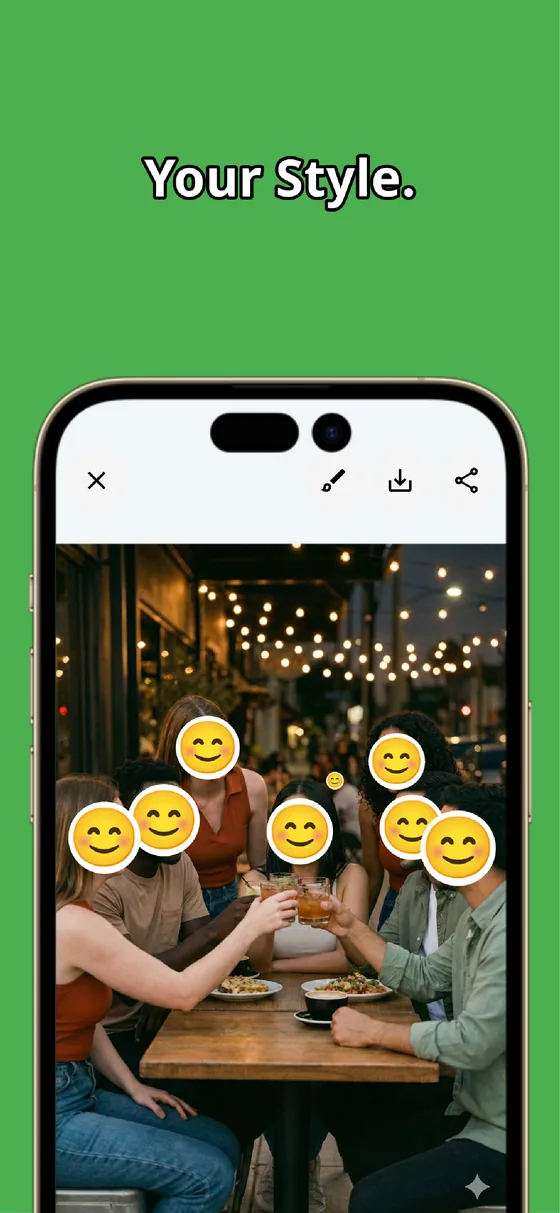
A thumbnail is a design choice, so the look of the cover matters. MozFace lets you choose between mosaic, blur, or a stamp, and adjust the strength. A heavy mosaic reads as a deliberate, faceless style; a soft blur keeps the mood while still hiding who you are; a stamp can add a bit of character. Match the choice to your channel and you get a cover that looks intentional rather than censored.
When it looks right, save it. The finished image is written as a separate file, so your original frame stays untouched — and you set that saved picture as the cover image when you publish the video.
A faceless TikTok or Reels cover comes down to three steps: grab the frame, auto-detect and hide the face, then pick a style and save. Whether being recognized is right for your channel is your call — MozFace just makes the hiding part fast and reliable.
MozFace
Auto-mosaic or blur every face just by picking a photo. Choose the style and strength, then save a clean thumbnail. Everything runs on your device, fully offline.
Learn more about MozFaceFrequently asked questions
Can MozFace edit the video itself?
No. MozFace works on a single still image, not video. For a thumbnail, you take the frame you want to use as the cover, hide the face in that image, and set the saved picture as your cover when you post.
Which style works best for a faceless thumbnail?
It is up to you. A heavy mosaic reads as a deliberate faceless style, a soft blur keeps the mood, and a stamp adds character. You can choose mosaic, blur, or a stamp and adjust the strength to match your channel.
Can I show some faces and hide others in the same image?
Yes. Every detected face opens covered, and a single tap on a face reveals it again, so you decide who appears and who stays hidden.
Are my photos ever sent over the internet?
In MozFace, face detection and editing happen entirely on your device, and your photos are never sent to any external server. It works even with no signal.