We're the Perfect Print team. "It printed at the wrong size" and "I want this photo at exactly 2 x 3 inches" are two of the messages we hear most, and they're why we built the app. The short answer: pick the paper you'll print on (Letter or A4), type the photo's width and height in inches or cm, save the sheet as an image, and print it at actual size (100%) with Fit to page turned off. Below are the steps, a size table in inches, cm and pixels, how Letter and A4 differ, and what to do if you print at a copy shop or an online print service instead of at home.
 Download Perfect Print for free
 Enter a photo's width and height in inches or centimeters and place it at true scale, no computer needed. Free, no sign-up, iPhone and Android.
Why prints from your phone come out the wrong size
Print a phone photo straight from the gallery and it gets fitted to a preset such as 4x6 or 5x7, or stretched to fill the page. That's convenient, but it gives you no way to ask for an exact measurement, like "2 inches tall by 1.5 inches wide" or "this picture at a true 10 cm". On a computer you can set exact dimensions in a document or image editor, yet opening a PC just for one print is a chore. We made Perfect Print so the photo goes onto the page at whatever size you type, and what you save is the whole sheet, ready to print.
How to print a photo at an exact size, step by step
Four steps. The order matters: paper first, then the photo and its size, then the print setting.
- Choose the paper you'll print on. Open the app and select the paper that's in your printer or that you'll ask a shop for: Letter, A4, A5, B5, Legal or a photo size such as 2L. A sheet laid out on Letter should be printed on Letter.
- Pick the photo. Choose it from your camera roll. You can put several photos on the same sheet.
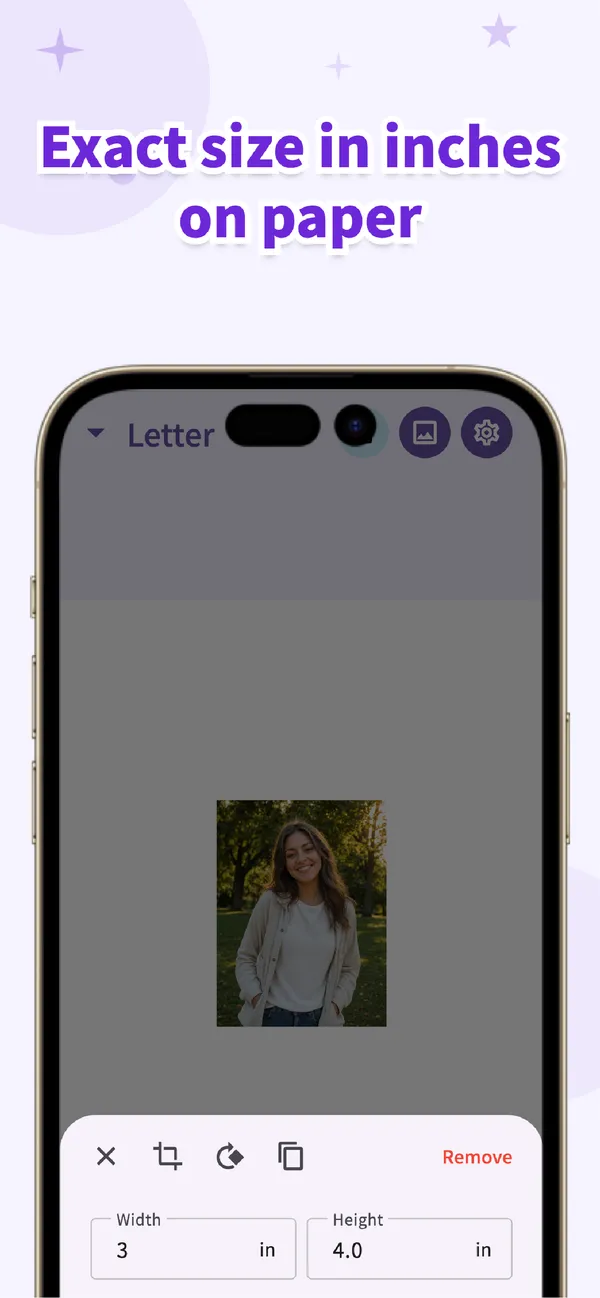
- Type the width and height. Enter, for example, 2 and 3 for a 2 x 3 inch photo, or 5 and 7 in centimeters for 5 x 7 cm. The photo lands on the page at true scale, and you can move it and rotate it. Mind the units: 1 inch is 2.54 cm, so 2 in is 5.08 cm.
- Save and print at 100%. Save the sheet as an image and print it on your printer, or take it to a copy shop. In the print dialog choose "Actual size", "Scale 100%" or "No scaling", and turn Fit to page off.
The print setting that decides whether it comes out exact
When a print comes out too big or too small, the cause is almost always Fit to page (also called "Scale to fit" or "Fit to printable area"). It quietly resizes the image to the sheet, so the inches or centimeters you typed no longer apply. The setting you want is Actual size, 100% or No scaling. The label differs between printers, browsers and print services, but the idea is the same: nothing touches the size. When it's done, put a ruler on the print to check. Most of the sizing problems people send us come down to this one setting. If it's still off, see why a print comes out too small or too big.
Letter or A4: choose the paper that's in your printer
Letter is the standard sheet in the US, Canada and the Philippines. A4 is the standard in the UK, Ireland, Australia, New Zealand, India and most of Europe. They are close but not the same: Letter is slightly wider and shorter. So don't lay a sheet out on A4 and send it to a Letter printer, because at 100% the bottom of the page will be cut off. Select in the app the paper you'll really use, and the photo will print at the size you entered. Either one gives the exact inch or cm size; only the margins around it differ.
| Paper | Inches | Millimeters | Common in |
|---|---|---|---|
| Letter | 8.5 x 11 | 215.9 x 279.4 | US, Canada, Philippines |
| A4 | 8.27 x 11.69 | 210 x 297 | UK, Ireland, Australia, NZ, India, Europe |
| Legal | 8.5 x 14 | 215.9 x 355.6 | US |
| A5 | 5.83 x 8.27 | 148 x 210 | Half an A4 sheet |
Common sizes in inches, cm and pixels
If you already know the size you need, type these numbers into Width and Height. The pixel column is the file size at 300 ppi (pixels per inch), which is the usual target for a sharp print: 1 inch is 300 pixels, or about 118 pixels per cm. A current phone photo has pixels to spare for every size here except a full sheet.
| Use | Width x height (in) | Width x height (cm) | Pixels (300 ppi) |
|---|---|---|---|
| Small custom photo (example) | 2 x 3 | 5.08 x 7.62 | 600 x 900 |
| Wallet photo | 2.5 x 3.5 | 6.35 x 8.89 | 750 x 1050 |
| U.S. passport photo | 2 x 2 | 5.08 x 5.08 | 600 x 600 |
| Business card (U.S.) | 3.5 x 2 | 8.89 x 5.08 | 1050 x 600 |
| 4x6 photo (also 4R, 6x4) | 4 x 6 | 10.16 x 15.24 | 1200 x 1800 |
| 5x7 photo | 5 x 7 | 12.7 x 17.78 | 1500 x 2100 |
| 8x10 photo | 8 x 10 | 20.32 x 25.4 | 2400 x 3000 |
| Full Letter sheet | 8.5 x 11 | 21.59 x 27.94 | 2550 x 3300 |
| Full A4 sheet | 8.27 x 11.69 | 21 x 29.7 | 2480 x 3508 |
ID photo sizes vary by country and by document, so confirm the one your agency asks for before you print (our guide to making an ID photo yourself covers the U.S. passport case). To fill a whole page with one picture, type the paper's own size; to save paper, keep the sheet at Letter or A4 and place several small photos on it. For more standard photo sizes, see the photo print sizes guide.
No printer? Use a copy shop, a drugstore or an online print service
The sheet you save is one ordinary image, so it works anywhere that prints a file at actual size: your own printer, a copy shop, an office-supply store or an online print service. Upload it or bring it on your phone or a USB stick, ask for the same paper size you chose in the app, at actual size, no fit to page, and cut the photos out when you get it. A drugstore photo kiosk is different: it prints preset sizes (4x6, 5x7, 8x10 and the like) and often crops or fits the photo by itself, so for a custom size like 2 x 3 inches it's better to print the whole sheet at a copy shop and trim it. If a self-service machine offers to auto-crop or auto-fit, switch that off.
Perfect Print
A free app that places a photo at an exact size in inches or centimeters and prints at 100%. Letter, A4 and more, several photos per sheet. No sign-up, iPhone / Android.
Learn more about Perfect PrintFrequently asked questions
How can I print a photo at an exact size from my phone?
Use a print-to-size app such as Perfect Print: choose the paper (Letter or A4), type the width and height in inches or centimeters, save the sheet and print it at 100%. You get true-scale print data without a computer.
What does "actual size" or 100% mean, and how do I set it?
It means the printer does not enlarge or shrink the page. Choose "Actual size", "Scale 100%" or "No scaling" in the print dialog. Fit to page, Scale to fit and Fit to printable area resize the image on their own and throw off the measurement.
Should I choose Letter or A4?
The paper that's in your printer or that the shop will use: Letter (8.5 x 11 in) in the US, Canada and the Philippines, A4 (210 x 297 mm) in the UK, Ireland, Australia, New Zealand, India and most of Europe. A sheet laid out on A4 and printed on Letter at 100% loses its bottom edge.
Can I use inches or centimeters, and does it cost anything?
Both. Perfect Print takes sizes in inches or centimeters, so you can work in whichever unit your requirement uses. The app is free to download and use, with no sign-up, on iPhone and Android; printing itself costs the usual printer or shop fees.
Print at an exact size with Perfect Print Save the photo at its real size and print it at home or at a copy shop. Free, no sign-up, ready to use as soon as you download it.