We are the MozFace team. Hunting for a new place is exciting, and it is natural to snap photos at a viewing and share them — asking friends which apartment to pick, or posting a moving-day update. The catch is that those photos often capture the exact details that turn an anonymous room into a real address: a unit number on the door, a nameplate, or a name still on the mailbox. This article walks through what to hide in viewing and moving photos and how to share them without pinning down the location.
What turns a room photo into an address
The risk is in the small fixed details. A unit number on the door, a nameplate, the name on a mailbox or intercom panel, and even a building sign in a hallway shot can each narrow a photo down to one specific home. Combine a couple of them and a stranger can work out the building and the unit.
These are easy to miss because you are looking at the layout, the light, the storage — not the number plate by the door. A name left on the mailbox from a previous tenant, or your own once you move in, is exactly the kind of thing that slips into the corner of a shot. Covering it before posting is far simpler than chasing a photo after it spreads.
Cover unit numbers and nameplates with the manual brush
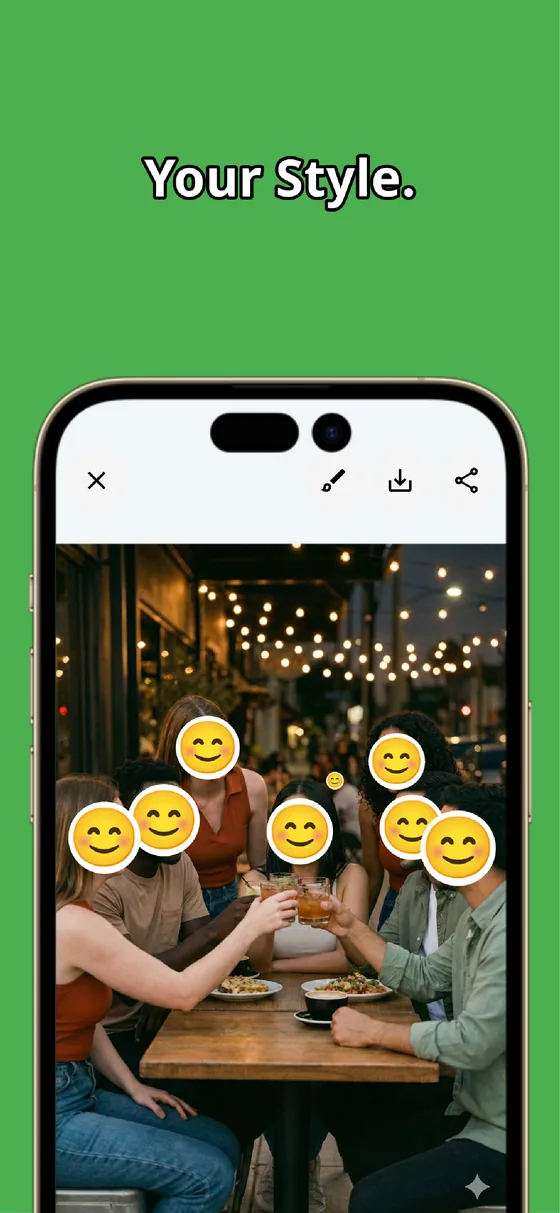
MozFace lets you cover these spots with a manual brush you trace with your finger. Drag over the unit number on the door, the name on the mailbox, or the intercom label, then choose mosaic, blur, or a stamp. Adjust the brush size for a small plate or a single line, and raise the strength until the number or name can no longer be read.
You keep the room itself fully visible — the layout, the kitchen, the view from the window — while only the location markers disappear. The finished photo saves as a separate file, so your original viewing shots stay untouched for your own comparison later.
Auto-blur anyone caught in the background
Viewings and moving days are busy, so an agent, a neighbor, or a passerby can easily end up in frame. The moment you pick a photo, MozFace runs on-device AI that detects every face and opens with everyone already blurred, so someone who never agreed to be posted is covered without you having to spot them first. A single tap reveals any face you do want shown.
Combine the two: auto-blur the people, then brush over the unit number and nameplate. Everything runs on your device and your photos are never sent anywhere. Whether and how to share a viewing photo is your call — the app just makes it quick to remove the details that would give the address away.
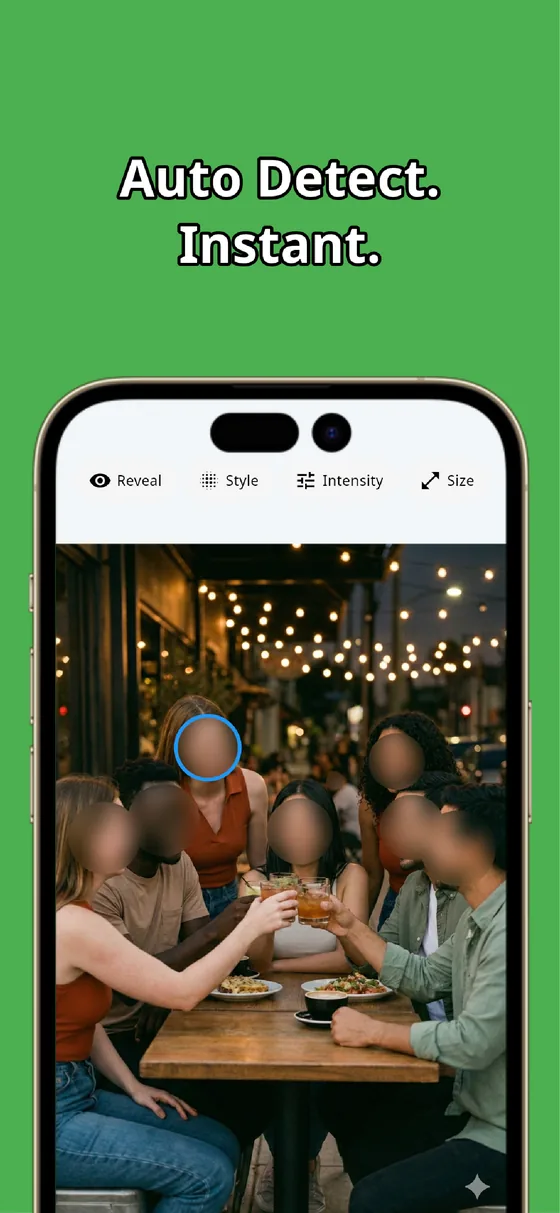
A viewing or moving photo can be shared freely once the location markers are gone. Cover the unit number and nameplate with the manual brush, and auto-blur anyone in the background. In tens of seconds you have a photo that shows off the place without revealing exactly where it is.
MozFace
Auto-mosaic or blur every face just by picking a photo. Cover unit numbers and nameplates with the manual brush. Everything runs on your device, fully offline.
Learn more about MozFaceFrequently asked questions
What should I hide in a viewing or moving photo?
The unit number on the door, any nameplate, the name on a mailbox or intercom panel, and building signs in hallway shots. Together these can pin the place to a real address, so cover them before posting.
Can I keep the room visible and hide only the location markers?
Yes. The manual brush covers only the spots you trace, so the layout, kitchen, and view stay fully visible while the unit number and nameplate disappear.
What about an agent or neighbor caught in the photo?
MozFace detects every face and opens with all of them blurred, so anyone caught in the background is covered without you having to spot them. A single tap reveals any face you do want shown.
Are my photos ever sent over the internet?
In MozFace, face detection and editing happen entirely on your device, and your photos are never sent to any external server. It works even with no signal.