We are the MozFace team. When you mail an item to an eBay or Mercari buyer, a quick photo of the packed box is a friendly touch — proof it is on its way. But the shipping label on that box usually carries a full address and a name, sometimes yours and sometimes the buyer's, in clear print. Share that photo and you have published someone's home address. This article walks through how to blur a shipping label so the photo is safe to send.
What a shipping label gives away
A mailing slip or shipping label is dense with personal data: the recipient's full name and address, your own return address, a phone number, and a tracking barcode. On a marketplace transaction, that label ties a real home to a username and an item, which is more than anyone needs to see. The buyer certainly did not agree to have their address posted in a shipped-it photo.
The risk is that the label is the whole point of the shot — you are showing the package is ready — so it sits front and center, not tucked in a corner. That makes cropping it away impossible without losing the photo.
Why a quick scribble is not enough
Drawing over a label by hand tends to leave the address partly legible — a street name peeking out below the line, or a postal code at the edge. A barcode covered by a thin mark can still be readable. With an address, half-hidden is the same as not hidden, because the missing pieces are easy to guess. You need to cover the whole block firmly, not just streak across it.
Cover the whole label with the manual brush
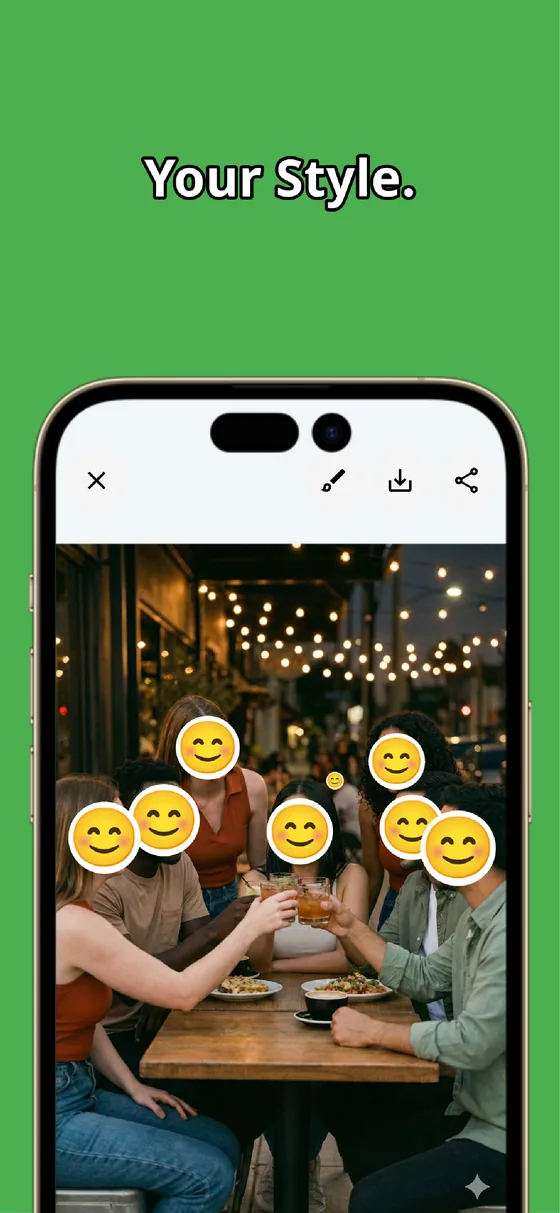
In MozFace, you hide a label with the manual brush you trace with your finger. Choose mosaic or blur, set a brush size large enough to sweep the whole address block in a few strokes, and raise the strength until the text and barcode can’t be read. Go right to the edges so no street name or postal code slips out.
You can still keep the box, the packing, and the item visible — you cover only the label, not the photo. If a stroke lands off, a one-tap undo lets you redo it. The edited photo saves as a separate file, so your original stays untouched.
Faces in the frame are handled automatically
Sometimes the shipped-it photo catches more than the box — a family member walking by, your own reflection in a window. The moment you pick the photo, MozFace runs on-device AI that detects every face and opens with everyone already blurred, so you do not have to remember to handle them. Tap to reveal anyone who is fine to show.
All of this stays on your device — you are not uploading a clear photo of someone's home address to an online tool just to blur it. Detection covers the faces, the manual brush covers the label, and the whole job happens offline.
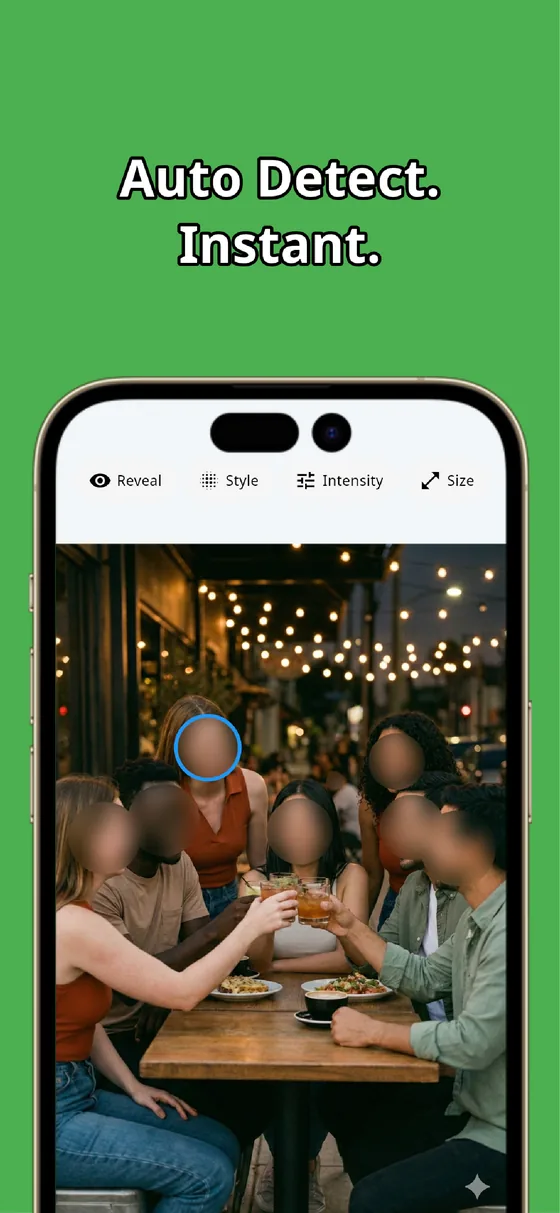
A shipping label is the densest piece of personal data in a shipped-it photo, and it sits right where you cannot crop it. Sweep the whole label with the manual brush and raise the strength so the address and barcode can’t be read, and let auto-detect handle any faces. In tens of seconds the photo is ready to share without exposing anyone's home.

MozFace
Auto-mosaic or blur every face just by picking a photo. Cover shipping labels, addresses, and barcodes with the manual brush. Everything runs on your device, fully offline.
Learn more about MozFaceFrequently asked questions
Can't I just crop out the label?
Usually not. In a shipped-it photo the label is the main subject, so cropping it away removes the point of the shot. Tracing the whole label with the manual brush lets you hide the address while keeping the box and item visible.
Is a quick scribble over the address enough?
No. A hand scribble often leaves a street name or postal code peeking out, and with an address half-hidden is as good as not hidden. Sweep the whole block with the manual brush and raise the strength until the text and barcode can’t be read.
Should I hide the tracking barcode too?
Yes. A barcode can encode tracking and routing details, so cover it along with the address. Set the strength high enough that it cannot be scanned or read.
Does the photo get uploaded anywhere?
No. In MozFace, editing and face detection happen entirely on your device, and your photos are never sent to an external server. It works even with no signal.