We are the MozFace team. Some photos are simply crowded — a class trip, a packed event, a parking lot full of cars. When you need to hide many faces, or faces and license plates together, editing them one at a time is slow and error-prone. The more there are, the more likely you miss one. This article covers how to cover everything in a busy photo at once, with as little manual work as possible.
Why crowded photos are hard to edit by hand
Going face by face has two problems. First, it is slow — twenty faces means twenty separate edits. Second, it is easy to miss one, especially a small face at the back or a plate half-behind another car. And the photos that most need hiding are exactly the crowded ones, so the manual approach struggles where it matters most.
Blur every face in one step
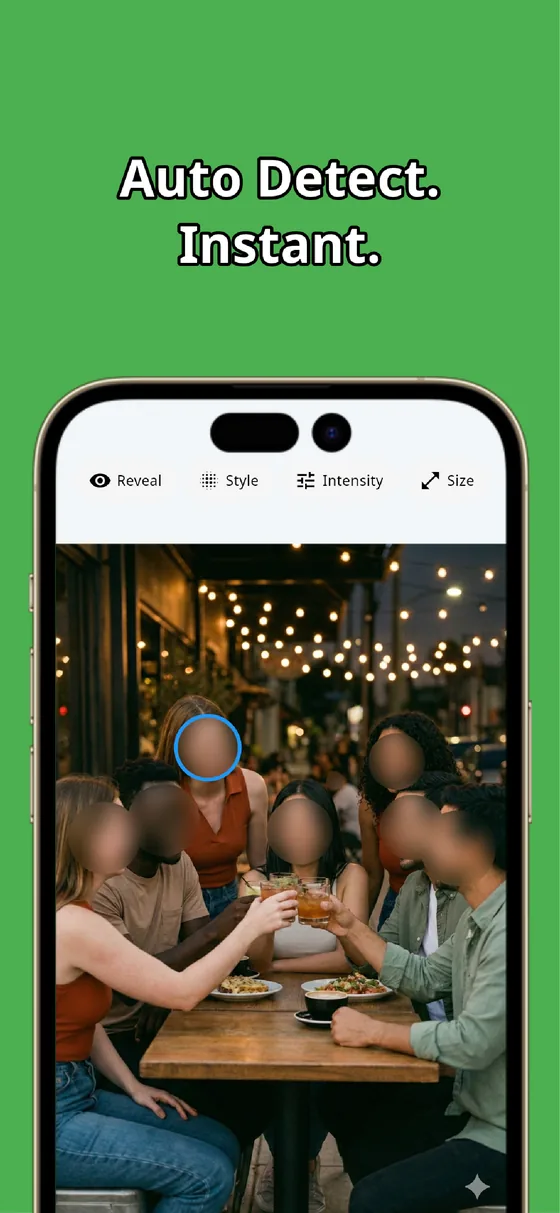
When you pick the photo, MozFace runs on-device AI that detects every face in the frame and opens with all of them blurred at once. Whether there are five faces or fifty, they are covered together in a single step — no tapping each one. This is the core of handling a crowded photo quickly.
If some faces are fine to show, a tap on each reveals it. Because everyone starts hidden, you spend your time choosing the few to reveal rather than chasing the many to hide. All processing stays on the device, and your photos are never uploaded.
Add license plates and details by hand
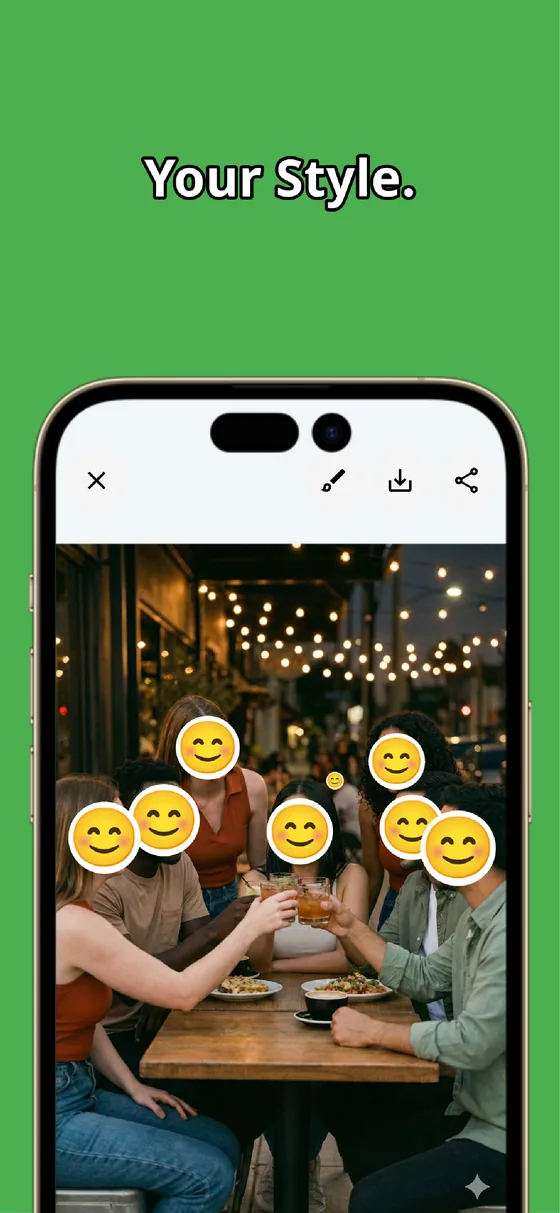
License plates, name tags, and house numbers are not faces, so you add them with the manual brush. Trace each one with your finger, choose mosaic or blur, and set the strength to cover it until it is unreadable. Several plates across a parking lot take only a few quick strokes.
The pattern is the same every time: auto-detect clears all the faces in one step, then the manual brush mops up the non-face details. Together they turn a photo that would take many minutes by hand into a job of tens of seconds, and the result saves as a separate file so your original is kept.
A crowded photo does not have to mean a long edit. Let auto-detect blur every face at once, then add license plates and other details with the manual brush. Whether the finished photo is fine to share is ultimately your call — covering everything quickly just makes that decision easier to act on.
MozFace
Blur every face in a crowded photo at once, then add license plates with the manual brush. Everything runs on your device, fully offline.
Learn more about MozFaceFrequently asked questions
Can it blur many faces at the same time?
Yes. MozFace detects every face it can find and opens with all of them blurred in one step, whether there are five or fifty. You then tap to reveal only the faces that are fine to show.
Can I hide license plates too?
License plates are not faces, so you cover them with the manual brush. Trace each plate, choose mosaic or blur, and set the strength to make it unreadable. Several plates take only a few strokes.
How much faster is this than editing by hand?
A photo with many faces that would take minutes one at a time is handled in tens of seconds, because auto-detect covers all the faces together and the manual brush only mops up the non-face details.
Are my photos ever sent over the internet?
In MozFace, face detection and editing happen entirely on your device, and your photos are never sent to any external server. It works even with no signal.