We're the team behind MozFace. Search for a "blur app" and you'll drown in options, so let's cut to what actually matters. There are only three questions worth asking: does it detect faces automatically, does it work on videos as well as photos, and does the processing stay on your device? In this guide we sort blur tools into four types and show which one fits each job — blurring faces, backgrounds, license plates, or whole videos.
Short answer: if you want auto face detection, video support, and on-device processing in one blur app, try MozFace. It's free to start.
The Four Types of Blur Tools
"Blur app" really covers four different kinds of tools. Sorting them out first makes the choice much easier.
| Type | Auto face detection | Video support | Best for |
|---|---|---|---|
| Built-in photo editor | No (manual) | Mostly no | People who don't want another app and can live with markup pens |
| Photo editor with a blur feature | Varies | Usually no | People who already edit photos and occasionally blur |
| Video editor with a blur feature | Varies | Yes | People blurring as part of a bigger editing job |
| Dedicated blur app | Yes (in capable apps) | Yes (in capable apps) | People whose goal is hiding faces or private info, fast |
Built-in editors are handy, but they give you a marker pen, not a real blur, and everything is one-by-one manual work. Blur functions buried inside photo or video editors tend to hide three menus deep, and region selection is usually manual too. A dedicated blur app opens straight into the job and brings the tools that matter for hiding things — like automatic face detection. If you blur something even once a month, a dedicated app ends up being the fastest option.
Three Things That Matter: Face Detection, Video, On-Device
First: automatic face detection. The most common blur job is hiding the faces of friends, kids, or strangers in the background. Doing that by hand means tracing each face and adjusting the size — a group photo takes ten minutes. With auto detection, the work is done the moment you pick the photo. MozFace detects every face and starts with all of them covered; you tap the ones you want to reveal. We flipped it that way because "choose who to hide" is how faces get missed.
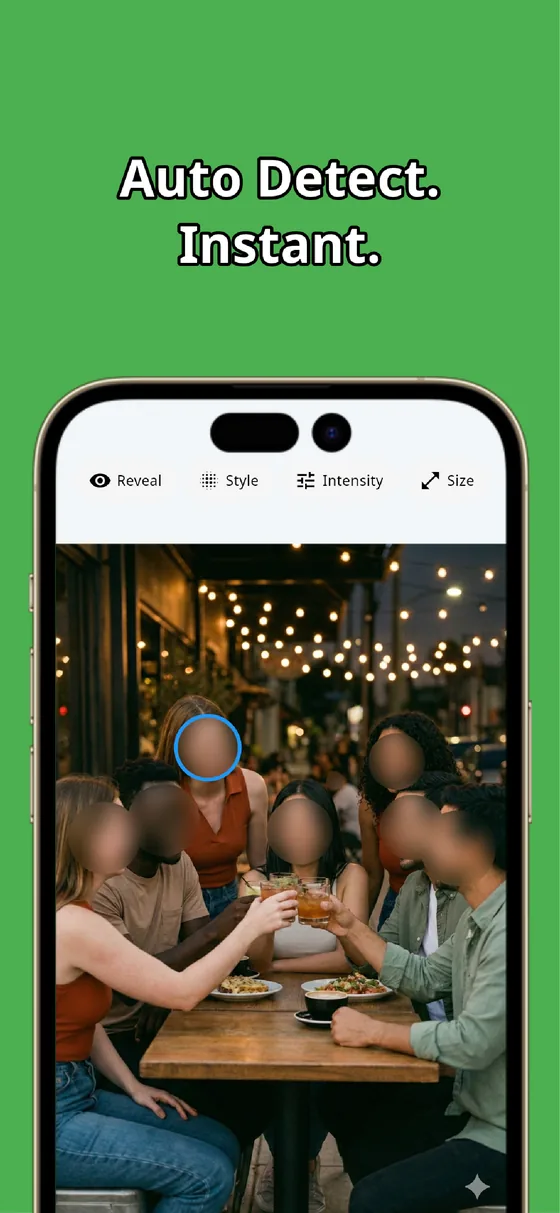
Second: photos and videos in one app. What you post isn't always a still image. In a video, subjects move — manually chasing a face frame by frame isn't realistic, so face tracking is what counts. Keeping one app that handles both photos and videos beats juggling two (see how to blur a video before posting).
Third: processing that stays on your device. A photo you want to blur is, by definition, a photo you don't want strangers seeing. Uploading it to a server to blur it defeats the purpose. MozFace does all processing on your device — your photos and videos are never sent anywhere.
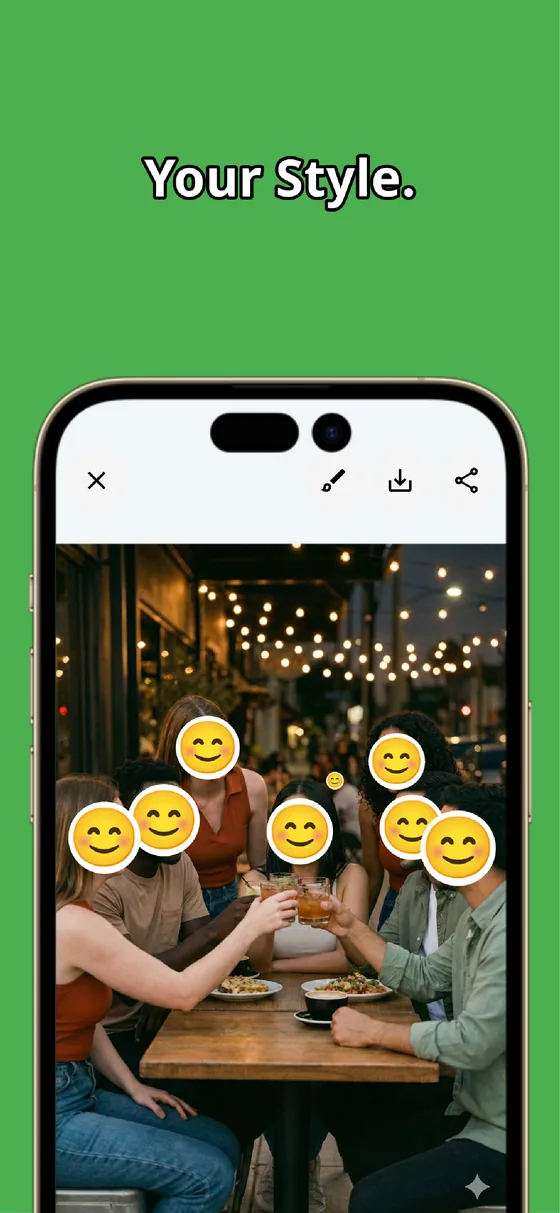
For the finish, you can switch between Gaussian blur, mosaic (pixelation), and emoji stickers with one tap, and adjust strength with a slider. Anything that isn't a face — a license plate, a document line, a screen — you can paint over with the manual brush, so auto plus manual covers the whole photo.
Which Blur for Which Job?
Faces in photos for social media — the most common case. Auto-detect everyone, reveal yourself, done. Stickers keep it playful; blur keeps it subtle. Backgrounds — strangers or messy rooms behind your subject: brush over them, or blur every face at once in a crowd shot. Videos — you need face tracking; photo-only tools can't follow a moving subject. Documents and screenshots — names, addresses, barcodes: use the brush with a strong setting, because a light blur can leave text readable.
One more common worry — "can a blur be reversed?" — gets a full answer in our guide to safe, non-recoverable blurring. The short version: a strong blur or mosaic is fine in practice; a weak blur on text is not.
How It Works in MozFace (3 Steps)
1. Pick a photo or video — faces are detected and covered instantly. 2. Pick a style and strength — blur, mosaic, or stickers, plus the manual brush for anything else. 3. Tap the faces you want visible, then save — and post. The job that used to be tracing regions one by one becomes just picking the photo.

Blurring should be one tap, not ten minutes
MozFace auto-detects faces in photos and videos and hides them with blur, mosaic, or stickers — plus a manual brush for everything else. All processing stays on your device. Free to start.
Learn more about MozFaceFrequently Asked Questions
Is there a free blur app?
Yes. MozFace is free to start, including auto face detection and switching between blur, mosaic, and stickers. Built-in editors are free too, but they mostly offer markup pens and everything is manual.
Can I blur just part of a photo?
Yes. Faces are handled automatically, and for anything else — license plates, documents, screens — you paint the area with the manual brush. You can also tap any detected face to reveal it.
Can I blur faces in a video?
MozFace works on videos and tracks moving faces to keep them covered. Photo-only tools can't do this, so if you post both photos and videos, pick an app that handles both.
Are my photos uploaded anywhere?
No. MozFace processes everything on your device, and your photos and videos are never sent externally. For photos you're blurring for privacy, we consider that non-negotiable.