We're the team behind MozFace. We've all had that moment: you want to post a group photo, and then you stop — "I need to hide the faces of the people next to me first." Tracing each one with your finger is tedious, and worse, missing even one is scary. In a photo with ten people, overlooking a single face can turn into a real problem later.
In this article we break down why blurring faces is tedious and nerve-wracking, and then walk through how we solved each cause as a deliberate design decision in MozFace. If you're tired of tracing faces by hand, or never quite sure you covered everyone, we hope the thinking behind the features comes through.
We treated "tracing faces by hand" as a design problem
Before building anything, we started by listing what we actually hated about existing face blur apps. Reading the reviews, the complaints lined up almost exactly with our own. The problem wasn't user carelessness — it was something more structural.
The biggest issue: you have to choose who to hide. With a trace-to-blur approach, the more people in the photo, the longer it takes and the higher the chance you miss someone. Tracing only the face accurately on a small screen is hard, too. And apps that claim "auto detection" are often so inaccurate you end up fixing them by hand anyway. These three things — effort, missed faces, and poor accuracy — were exactly what we set out to kill.
How do we solve each of those three with the design itself? That became the guiding principle for MozFace. Let's go through them one by one.
The instant you pick a photo, every face is blurred
The first thing we decided was "blur the moment a photo is added." When you pick a photo from your library, on-device AI detects every face and you start editing from a state where everyone is already blurred — in about 0.3 seconds. Even with ten people, there's no selecting them one by one.
Face detection runs entirely on your phone. It catches not just front-facing but also angled and side profiles, and if anything is missed, you can add it with the manual brush described below. Starting from "everyone is already hidden" was, to us, the first step to eliminating missed faces.
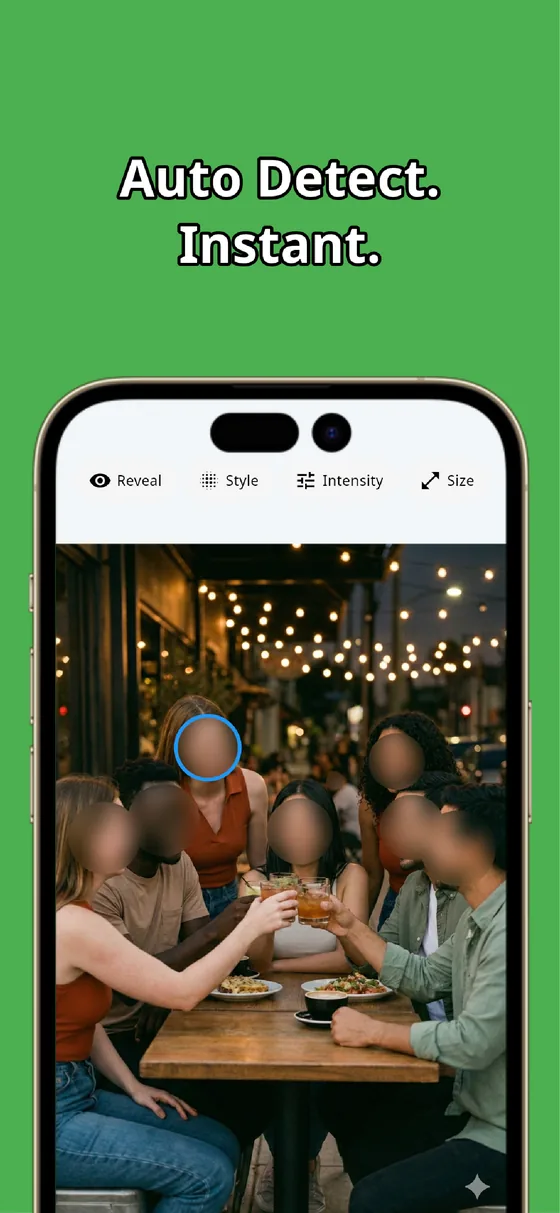
Choose who to reveal, not who to hide
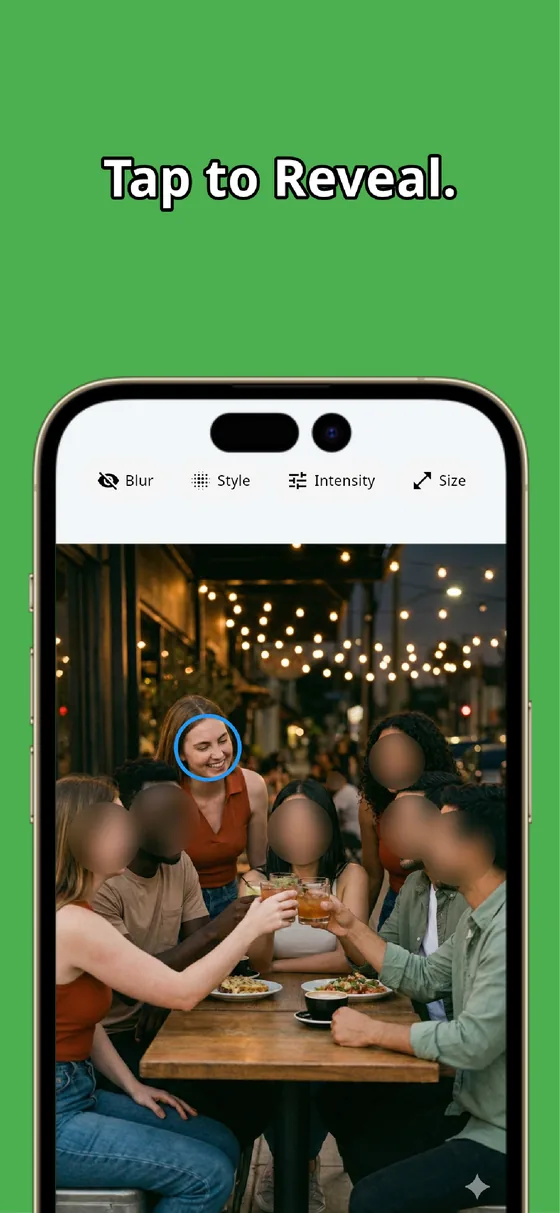
Traditional blur apps work by "select who to hide, then blur them." We reversed it. Blur everyone first, then tap to reveal only who you want to show. If you're the only one who should appear in a group shot, just tap your own face. Everyone else stays blurred from the start.
We insisted on this "hide first, reveal later" order because we didn't want missed faces to be a matter of willpower. When someone gets overlooked, it's not the person's fault — it's the order of the workflow. So we made "if you do nothing, everyone is hidden" the default state. This is the single most important design decision in MozFace.
Three blur styles, plus a manual brush for everything else
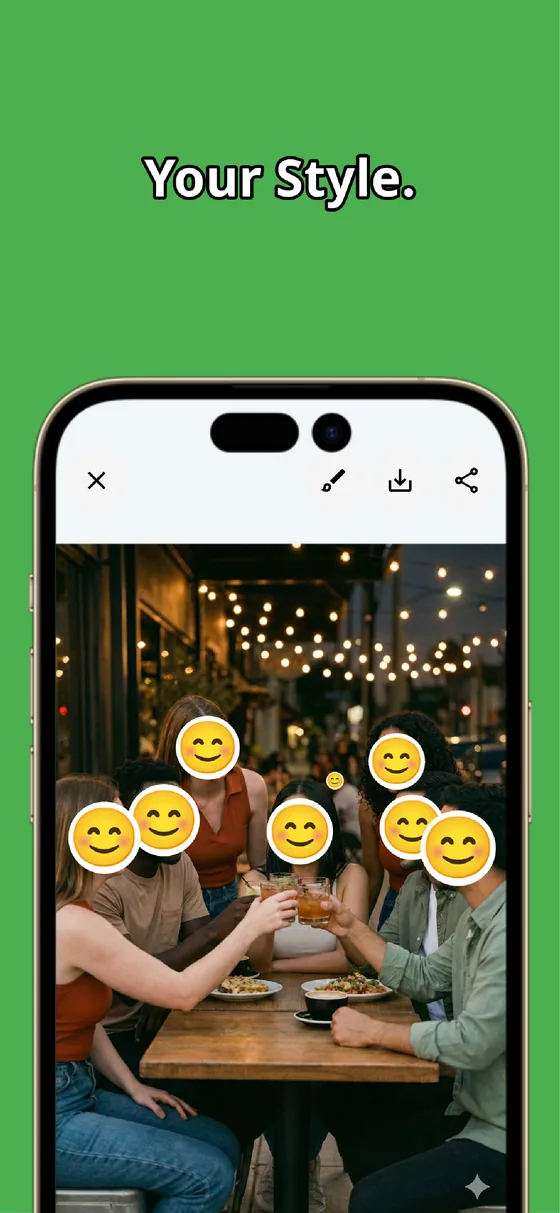
You can choose how to hide based on the situation: a frosted-glass Gaussian blur, the classic mosaic, and playful emoji stamps. Intensity is adjustable with a slider, and you can even set a different style or strength per face.
And for what AI face detection can't cover — a car's license plate, an address on a nameplate, a name on a document — the manual brush lets you hide any area with your finger. Brush size is adjustable, and a single tap undoes a mistake. Combining automatic and manual, you can wipe out the personal information in a photo end to end.
Your photos never leave the device
From face detection to editing, everything happens on the device. Your photos are never sent over the internet. Photos of faces are some of the most private data there is, so this was a line we wouldn't cross in the design. It works fine even with no signal.
What we changed versus existing face blur apps
Here are the design decisions we made for "peace of mind," lined up next to a typical face blur app.
| Typical face blur app | MozFace | |
|---|---|---|
| How faces are hidden | Trace each one by finger | Everyone auto-blurred on selection |
| Missed faces | Likely with more people | Starts with everyone hidden |
| Your photos | Check whether they're uploaded | Fully offline, never uploaded |
What we set out to do with MozFace
We've walked through the features one at a time, but the idea underneath is simple. What hiding faces really needs is to not make you work hard. So instead of adding features, we built MozFace by removing three obstacles one by one: effort, missed faces, and privacy worries.
Group photos, kids' school events, marketplace listings, blogs and social posts. In every situation where you need to hide faces, you start from the reassurance that "everyone is already hidden." If you're worn out from tracing faces by hand, we'd love for you to try MozFace on your next photo.
MozFace
Blur everyone's face just by picking a photo. Tap to reveal only who you want to show. Fully offline.
Learn more about MozFaceFrequently asked questions
How accurate is the face detection?
It uses on-device AI that catches not just front-facing but also angled and side profiles. If anything is ever missed, you can add it on the spot with the manual brush — so nothing is left exposed.
Are my photos ever sent to a server?
No. Both detection and editing happen entirely on your device, and your photos are never sent to any external server. It works even without an internet connection.
Does editing reduce the image quality?
Saved images keep quality high enough for social media and messaging. Your original photo is never overwritten — the edited version is saved as a separate file.
Can I blur things other than faces, like license plates?
Yes. With the manual brush you can trace any area of the photo to blur it — license plates, addresses, names, and other personal information beyond faces.