We are the MozFace team. People love to share the mail — an exciting package, a handwritten card, a piece of fan mail — on Instagram or X. The trouble is that an envelope or parcel almost always shows your name and address on the front, in clear handwriting or print. Post the photo and you have published where you live. This article walks through how to blur the address panel on a piece of mail so the photo is safe to share.
What an envelope reveals
The address panel of a letter or parcel typically carries your full name, your home address, and sometimes a postal code and phone number. The sender's details may be there too. A piece of mail is essentially a printed identity card pointed straight at where you live — and in a photo, it is usually the focal point, not a stray detail in the corner.
That is what makes it tricky: you are sharing the mail because of what it is, so the address panel sits front and center where you cannot crop it away without losing the photo.
Why a half-cover is not safe
Drawing over an address by hand often leaves part of it legible — a street name below the line, a postal code at the edge, a surname that is easy to read. Handwriting covered by a thin mark can still be made out stroke by stroke. With an address, a partial cover is no cover at all, because the visible pieces let someone fill in the rest. You need to cover the whole panel firmly.
Cover the address panel with the manual brush
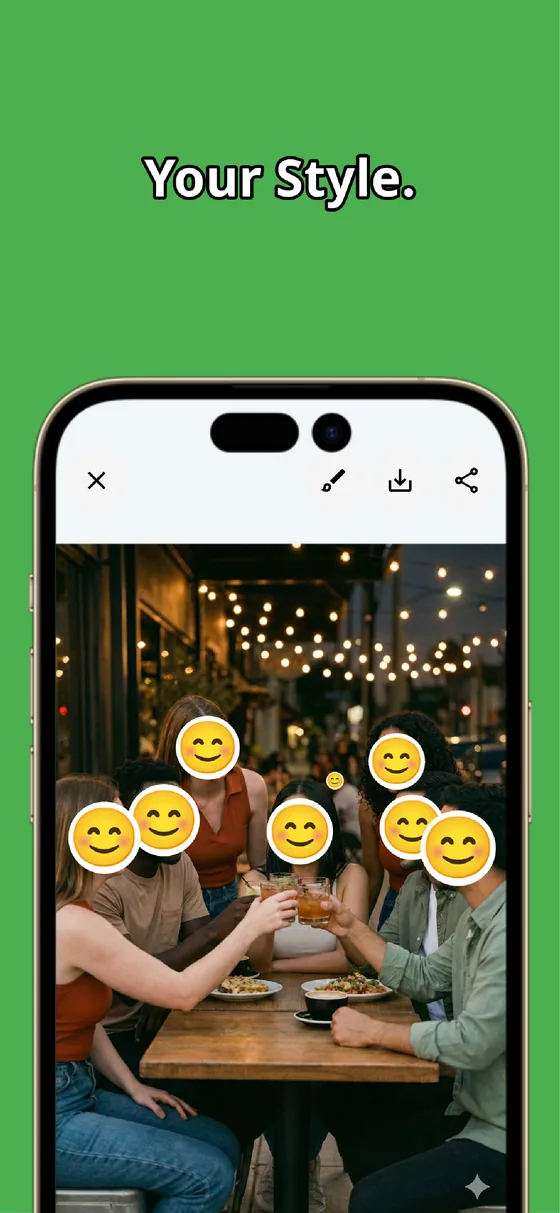
In MozFace, you hide the address with the manual brush you trace with your finger. Choose mosaic or blur, set a brush size that sweeps the whole address block in a few strokes, and raise the strength until the name and address can’t be read. Push it higher for handwriting, and go to the edges so no line slips out.
You keep the envelope, the stamp, and the design of the card visible — you cover only the address panel, not the photo. If a stroke lands off, a one-tap undo lets you redo it, and the edited photo saves as a separate file so your original is untouched.
Faces in the shot, covered automatically
An unboxing or mail photo sometimes catches a face — yours in a reflection, a family member nearby, the sender's photo on a card. The moment you pick the photo, MozFace runs on-device AI that detects every face and opens with everyone already blurred, so you do not have to remember them. Tap to reveal anyone who is fine to show.
Everything stays on your device — you are not uploading a clear photo of your own address to an online tool just to blur it. The manual brush covers the address, detection covers the faces, and the whole job happens offline.
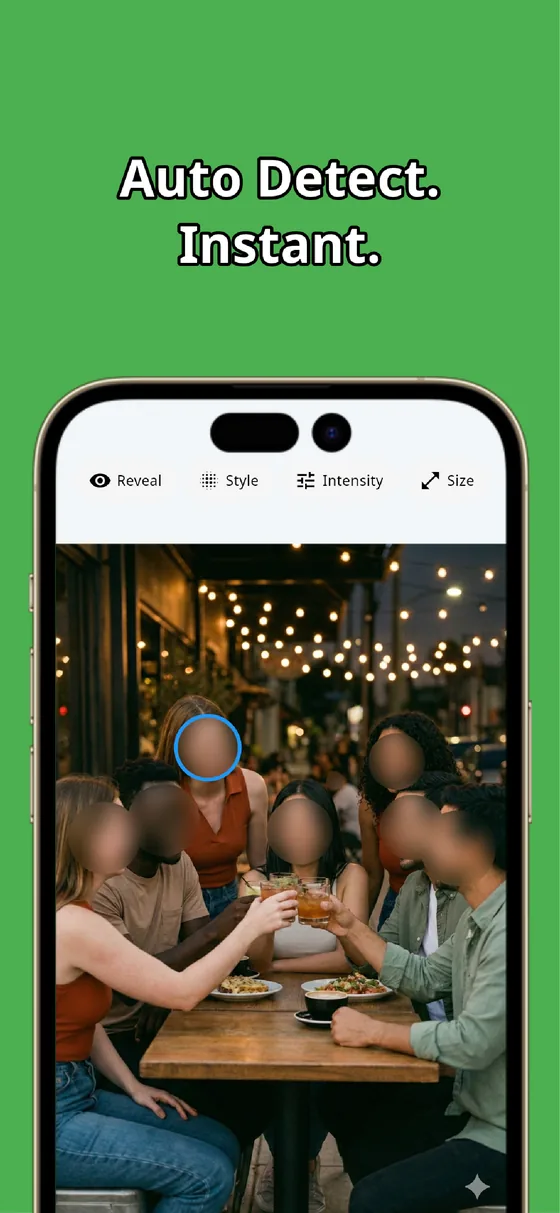
A piece of mail points straight at where you live, and the address panel sits right where you cannot crop it. Sweep the whole panel with the manual brush and raise the strength so the name and address can’t be read, and let auto-detect handle any faces. In tens of seconds the photo is ready to share without giving away your home.
MozFace
Auto-mosaic or blur every face just by picking a photo. Cover the address on mail, labels, and envelopes with the manual brush. Everything runs on your device, fully offline.
Learn more about MozFaceFrequently asked questions
Can't I just crop the address out of the photo?
Usually not. When you are sharing a letter or package, the address panel is the focal point, so cropping it away removes the photo. Tracing the panel with the manual brush lets you hide the address while keeping the envelope, stamp, and card design visible.
Is covering part of the address enough?
No. A partial cover often leaves a street name or postal code legible, and the visible pieces let someone guess the rest. Sweep the whole panel with the manual brush and raise the strength until the name and address can’t be read.
Does handwriting need stronger settings?
It can. A thin mark over handwriting can still be made out stroke by stroke, so push the strength higher and cover the whole panel rather than just streaking across it.
Is my photo sent anywhere?
No. In MozFace, editing and face detection happen entirely on your device, and your photos are never sent to an external server. It works even with no signal.