We're the team behind Flips, a flashcard app built on the forgetting curve. If you've ever handed a class a vocabulary list or a study sheet before a quiz, you already know the real problem isn't putting the list together — it's what happens after you hand it out. Students tuck it in a folder, cram the night before, and it's gone from memory the moment the test ends.
Here's what actually works: keep building lists the way you already do, in a spreadsheet, then export it as a CSV and hand students the file. They import it into a flashcard app, and from that point on, the app takes over scheduling review — no reminders from you required. This post walks through exactly how to set that up with Flips.
 Get Flips Free
 Build your list, export it as a CSV, and students import it into Flips — review runs automatically from there.
What to Look for in a Distribution App
Before you pick a tool for this, make sure it checks three boxes.
1. It's completely free for students. You can't ask students to pay to review material you assigned. Flips is free with every feature included, and there's no cap on how many cards a deck can hold.
2. It supports bulk import from a CSV. If students have to retype every card by hand, you've lost most of the point of handing them a ready-made list. Look for an app where they can import dozens or hundreds of cards at once.
3. Review keeps running on its own after you hand it out. Telling students to "review this on your own time" rarely holds up. What actually makes distribution worthwhile is an app that manages when each card comes back around, without anyone having to plan it.
Step 1 — Teacher: Build Your List
Start in a spreadsheet you already use, like Google Sheets. Put the prompt (the front of the card) in the left column and the answer (the back) in the right column. Whatever list you already have — vocabulary for a quiz, key terms for a unit, dates for a history test — works as-is.
Once it's ready, go to File > Download > Comma Separated Values (.csv). A header row isn't required. If you'd like one, label the columns "front,back" or "question,answer" — Flips recognizes those automatically — but any other labels will be imported as the first card, so when in doubt, just skip the header.
If you've already built a deck inside Flips yourself, you can turn that into a distribution file too. Open the deck, tap the "⋮" menu in the top right, and choose "Export Items." That produces a CSV of just the card content — no study history is included, so every student starts from a clean slate.
Step 2 — Distribute: Send the CSV to Students
Once you have the file, send it however you already reach your class — attach it to a Google Classroom post, email it, drop it in your LMS, or share it through whatever messaging tool your school uses.
There's no account linking or server setup on either end. Flips has no concept of a class roster, so all that has to happen is the file reaching your students. Think of it as one extra attachment on a message you'd send anyway.
Step 3 — Student: Import into Flips
The student side is just as simple. They install Flips and create a new deck.
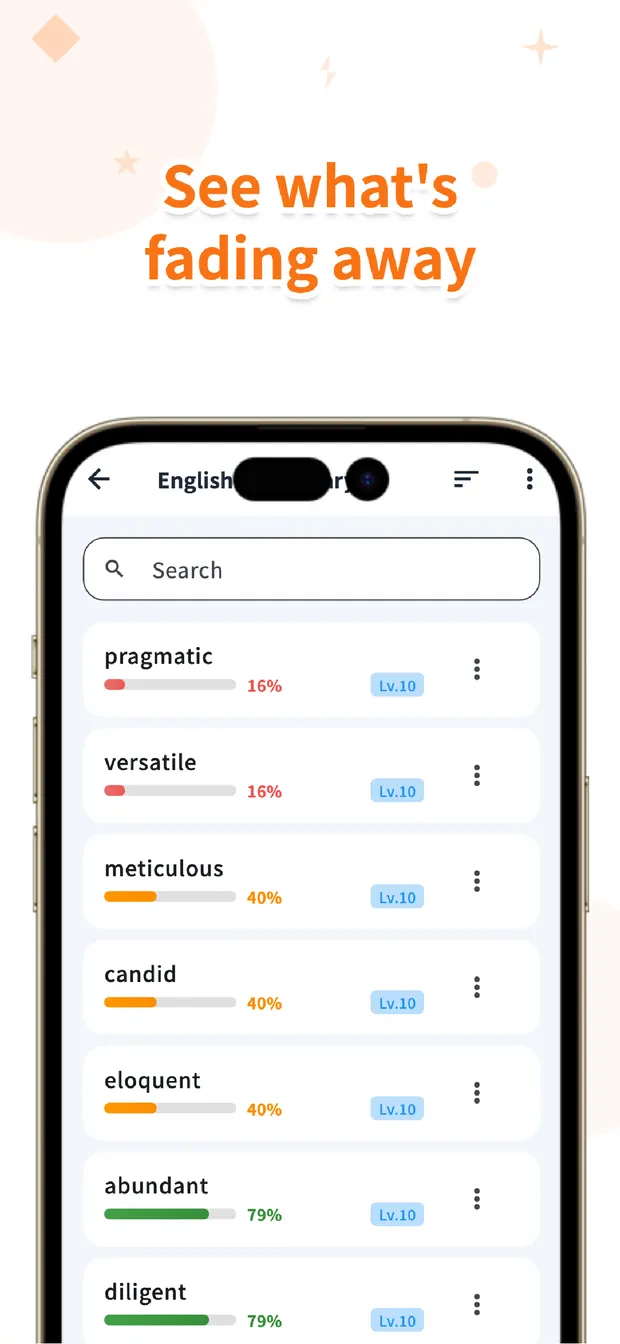
Then they open that deck, tap the "⋮" menu in the top right, choose "Import Items," and select the CSV file you sent. Dozens or even hundreds of cards get added in one batch — no typing required. Once imported, the deck looks like the screenshot here, with a retention gauge for every card.
Get Flips Free Students install Flips and import the CSV — review timing is then managed automatically by the forgetting curve.
The Real Work Starts After You Hit Send
This is where a CSV differs from a printout. A printed sheet is done the moment it leaves your hands — whatever happens next is entirely up to the student. With Flips, the moment a deck is imported, review scheduling kicks in on its own.
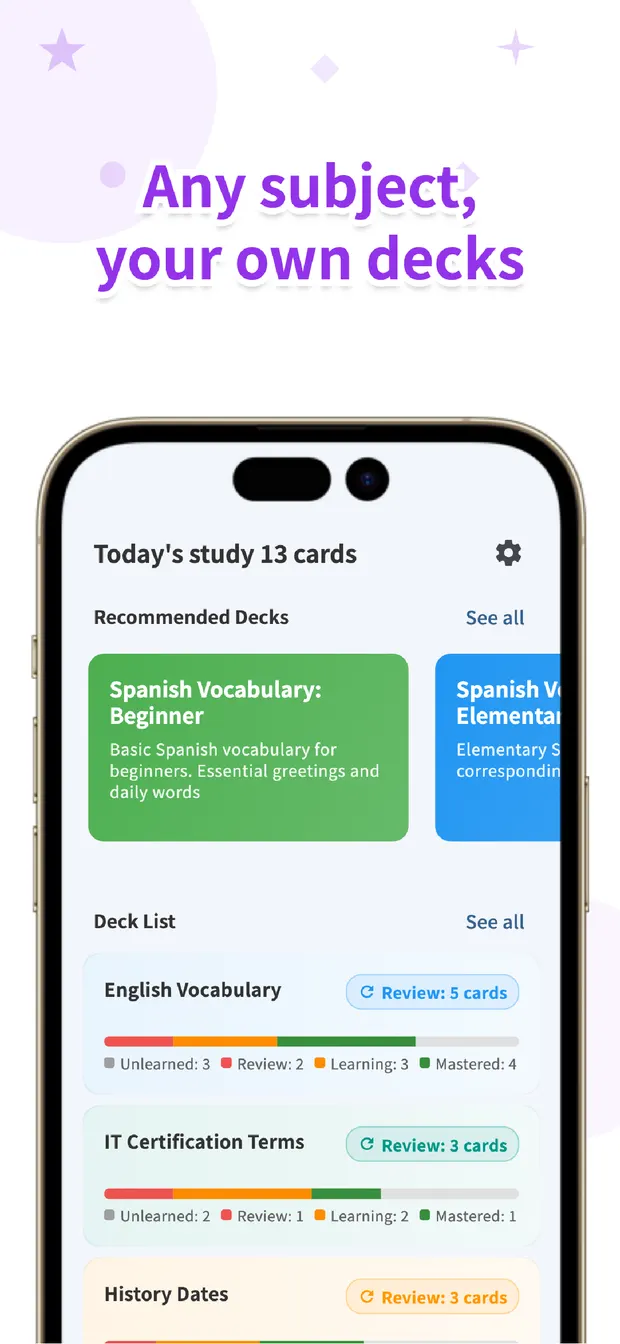
Based on Ebbinghaus's forgetting curve, Flips calculates when each individual card is due for review. Cards a student keeps getting right get pushed further out; cards they miss or hesitate on come back sooner, right around when they're about to fade from memory. Nobody has to plan a review schedule by hand — the home screen simply shows how many cards are due today, and students work through them.
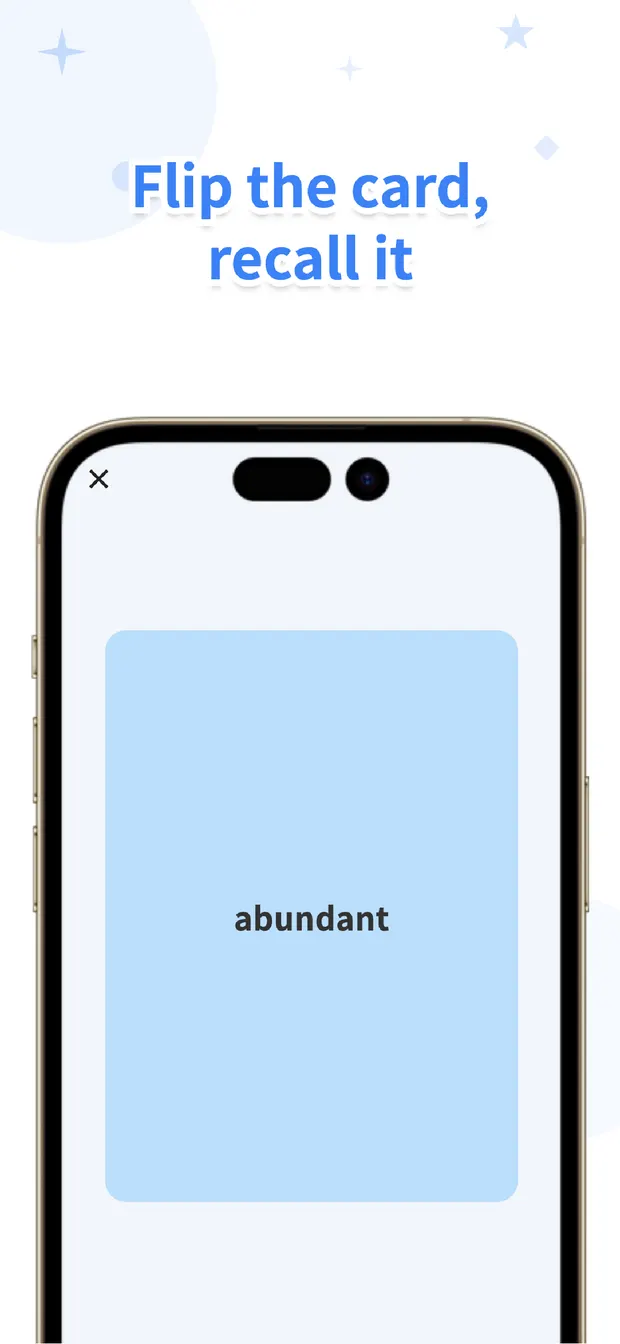
Students can study in Card mode (recall the answer, then flip to check) or Quiz mode (choose from four options). Either way, all they have to do is open the app and answer whatever comes up.
Common Snags and How to Avoid Them
A few things trip people up when they start distributing decks this way.
1. CSV encoding has to be UTF-8. If you export from Excel using "Save As" and pick a plain CSV format, it can save in a different encoding and fail to import. A file downloaded from Google Sheets is always UTF-8, so that's the safest default. If you're using Excel, choose "CSV UTF-8 (Comma delimited)" from the save format list instead.
2. A single blank prompt or answer breaks the whole import. Before you send the file, scan your list for empty cells — even one blank row will cause the import to fail entirely.
3. For a second round, have students import into a fresh deck. Importing new cards into an existing deck can mix them in with older material or create duplicates. Asking students to start a new deck for each new CSV keeps everything organized.
Flips
The flashcard app that shows you words right before you forget them. Review timing managed automatically by the forgetting curve. Free to start.
Learn more about FlipsFrequently Asked Questions
Do students have to pay for anything?
No. Flips is free with every feature included, and there's no limit on deck size, so you can distribute material without asking students to pay.
My CSV won't import. What's wrong?
It's most likely an encoding issue. Files downloaded from Google Sheets are always UTF-8 and import reliably. If you're exporting from Excel, save the file as "CSV UTF-8 (Comma delimited)" instead of the default CSV format.
Can I see how my students are progressing?
No, Flips doesn't offer that. What you distribute is just the card content (prompts and answers); each student's study history stays on their own device. If you need to track progress, pair this with a quiz or short assessment as you normally would.
Is there a limit to how many cards I can send?
No. A CSV with several hundred cards imports in a single batch just as easily as a short list.